How to Generate an Image With Promptchan
Generate an AI image with Promptchan, screenshot by screenshot: the Create button, the prompt (and the negative one), picking a style, Attributes, then what to do with the result (animate, publish, save). 1 to 2 Gems per image depending on the model. Tested 2026.
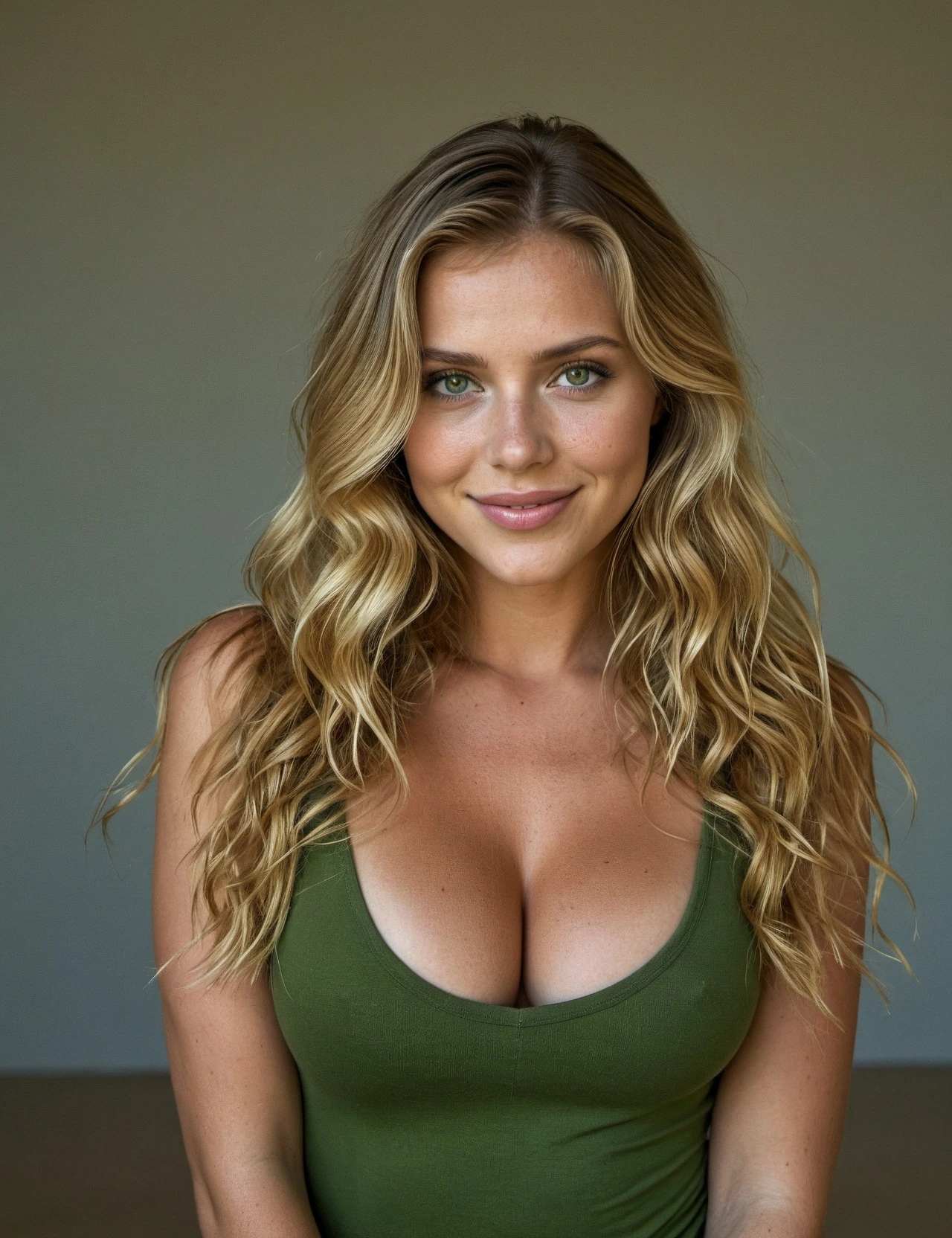
Demo — here's what you'll get, and the same image animated in one click:
- The Create button — top of the site, Image mode (not Video)
- Two prompt fields — what you want (Prompt) and what you want to avoid (Negative Prompt). The negative one is what cleans up messed-up hands, text, watermarks…
- The Style — that's the model that changes everything (Photo XL+, the free Cinematic, etc.). Some are Pro-only
- 1 to 2 Gems per image depending on the model. 5 free Gems when you sign up
- On the result — you can Animate it (into video), Publish it to the feed, or save it
For the full verdict (price, Gems, NSFW), see our Promptchan review.
Promptchan is an image generator before it’s a chat app. You describe the scene, pick a style, click, and your photo lands in a few seconds. The thing people miss at first is the negative prompt (the “what you want to avoid” field) and the style choice — that’s where 80% of the result is decided. I’ll show you both, and the rest, screenshot by screenshot.
How do you generate an image with Promptchan?
To generate an image with Promptchan: click Create at the top, keep Image mode, write your scene in Prompt and what to avoid in Negative Prompt, pick a Style (model), then hit Create. Budget 1 to 2 Gems per image depending on the model, and a few seconds of wait. On the result, you can animate it into video, publish it, or download it.
The step-by-step is below.
Before you start: what you need
- A Promptchan account (free to sign up, 5 free Gems)
- At least 1-2 Gems in stock — shown top right, next to the Upgrade button
- Straight talk on content: the free tier stays soft (fail-safe mode, some styles and NSFW locked). The price and Gems detail is in our review
Step 1 — Click Create
Once you’re logged in, you land on Explore (the creations feed). At the top, click Create (the magic-wand icon). That’s where it all starts.
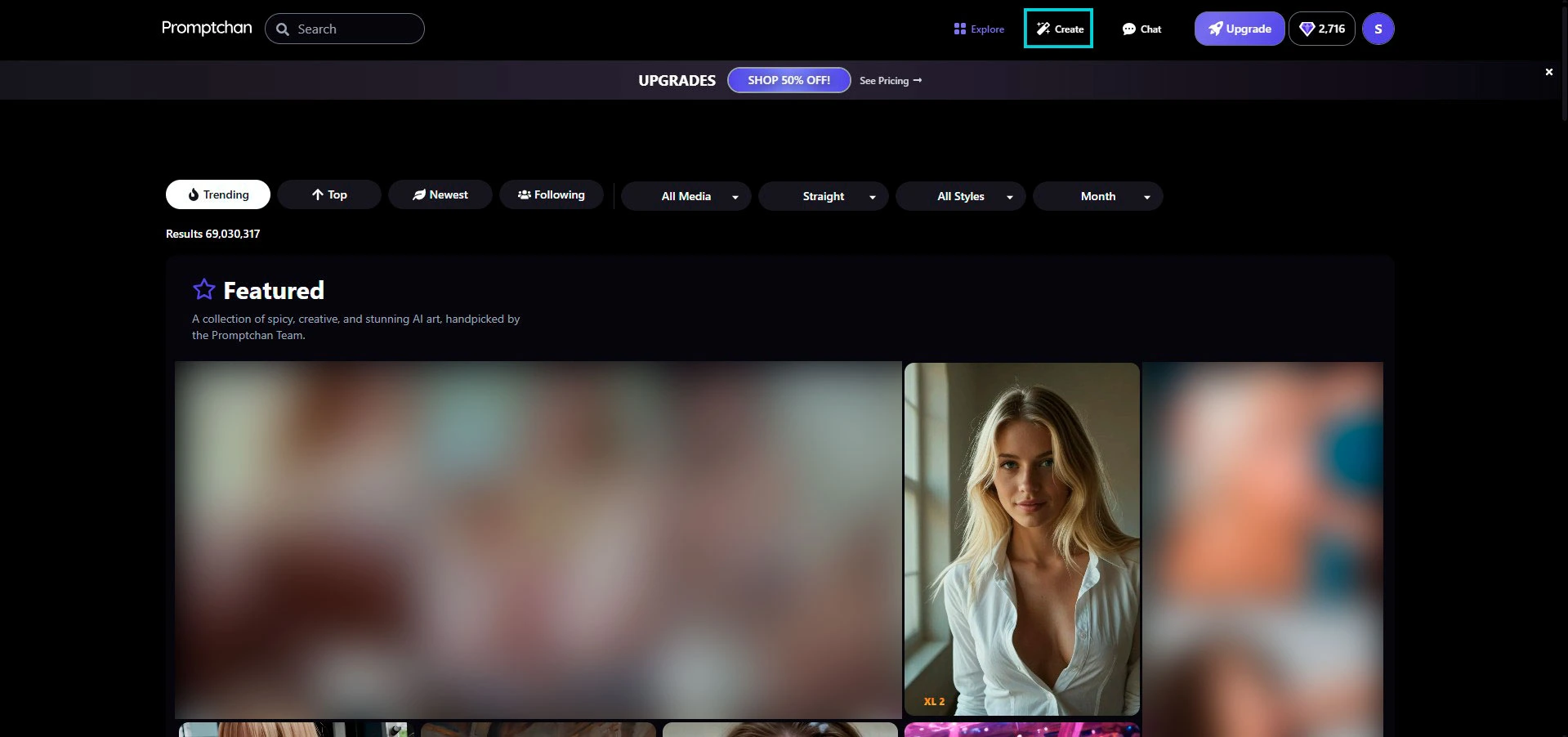
Keep in mind: your Gems balance is shown top right. That’s your currency to generate — check you’ve got at least 2 before you fire.
Step 2 — The Create panel (stay on Image)
The generator opens on the left. Right at the top is the Image / Video toggle: leave it on Image (Video mode is pricier and a different guide).
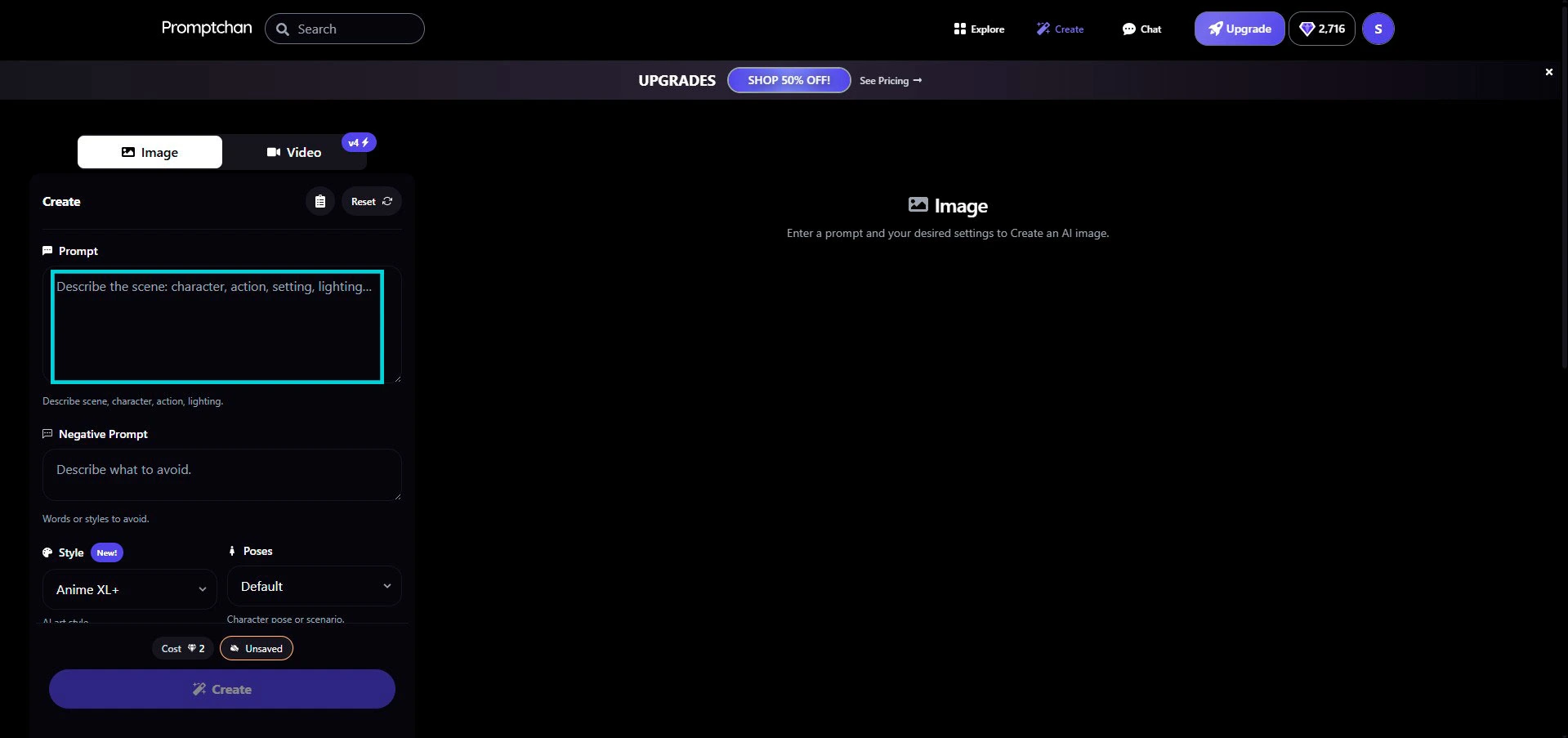
The zones to know:
- Prompt — your scene description
- Negative Prompt — what you want to avoid
- Style — the image model (we get to it in Step 4)
- Poses — a preset pose or scenario (optional)
- At the bottom: the Cost (in Gems) and the big Create button
Step 3 — Write your prompt (and your negative prompt)
This is the step that makes or breaks it. Describe the scene as precisely as you can: the subject, the age, the hair, the outfit, the pose, the setting, the lighting, the visual quality.
Don’t feel like staring at a blank page? Run it through our free prompt generator (no sign-up): you pick the look, realistic or anime render, the outfit, the setting, the lighting… and you get a clean prompt, ready to paste straight into Promptchan’s Prompt field. The simplest way to get a solid start.
Promptchan prompt tip: write in tags separated by commas, not sentences (“blonde hair, green eyes, red dress” rather than a long sentence). Promptchan runs on Stable Diffusion, so you can emphasize a key detail with a weight —
(red_eyes:1.2)— staying between 1.0 and 1.4 (beyond that it distorts). And describe what you want, not what you don’t: a “no clothes” in the main prompt paradoxically adds clothes — that’s the job of the Negative Prompt (right below).
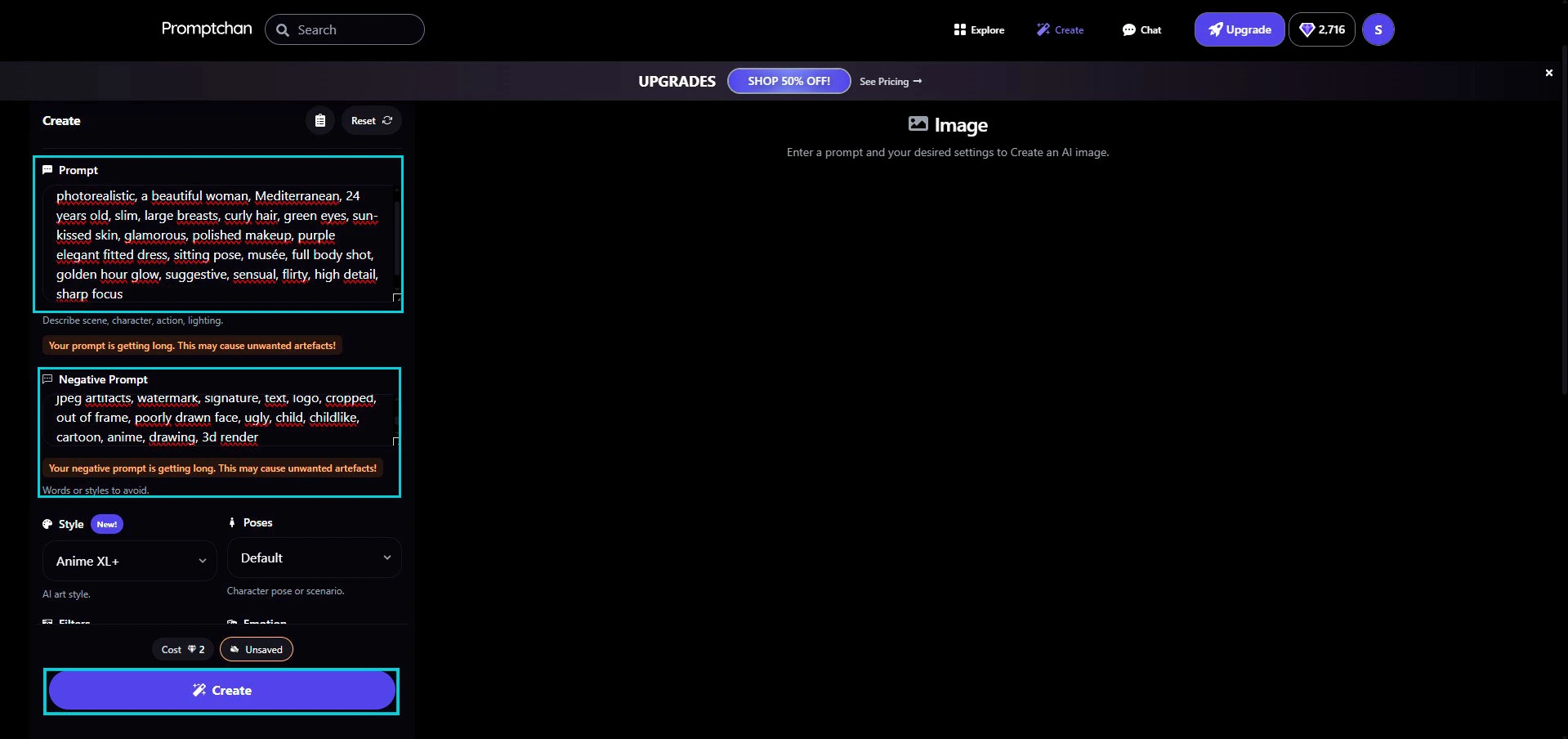
Here’s the example we tested for this guide’s result:
“photorealistic, a beautiful woman, Mediterranean, 24 years old, curly hair, green eyes, sun-kissed skin, glamorous, polished makeup, purple elegant fitted dress, sitting pose, full body shot, golden hour glow, suggestive, flirty, high detail, sharp focus”
The Negative Prompt is the field beginners skip — and it’s the one that saves the photo. You put everything the AI should avoid in here:
“jpeg artifacts, watermark, signature, text, logo, cropped, out of frame, poorly drawn face, deformed, bad anatomy, extra limbs, extra fingers, mutated hands”
That’s what clears out messed-up hands, stray text and watermarks. Without it, you’ll reroll ten times for nothing.
Tip: the AI handles English best. You can try your own language, but the result is more stable in EN. And keep a realistic adult age in your prompt — that’s what the app expects too.
Heads up: if Promptchan shows “Your prompt is getting long, this may cause unwanted artefacts”, you’ve put in too much. Trim the fluff, keep the essentials.
Step 4 — Pick your Style (the model)
Click the Style selector: a window opens with every model, sorted by tabs (Photoreal, Hyperreal, Anime, Illustration, Render, Legacy).
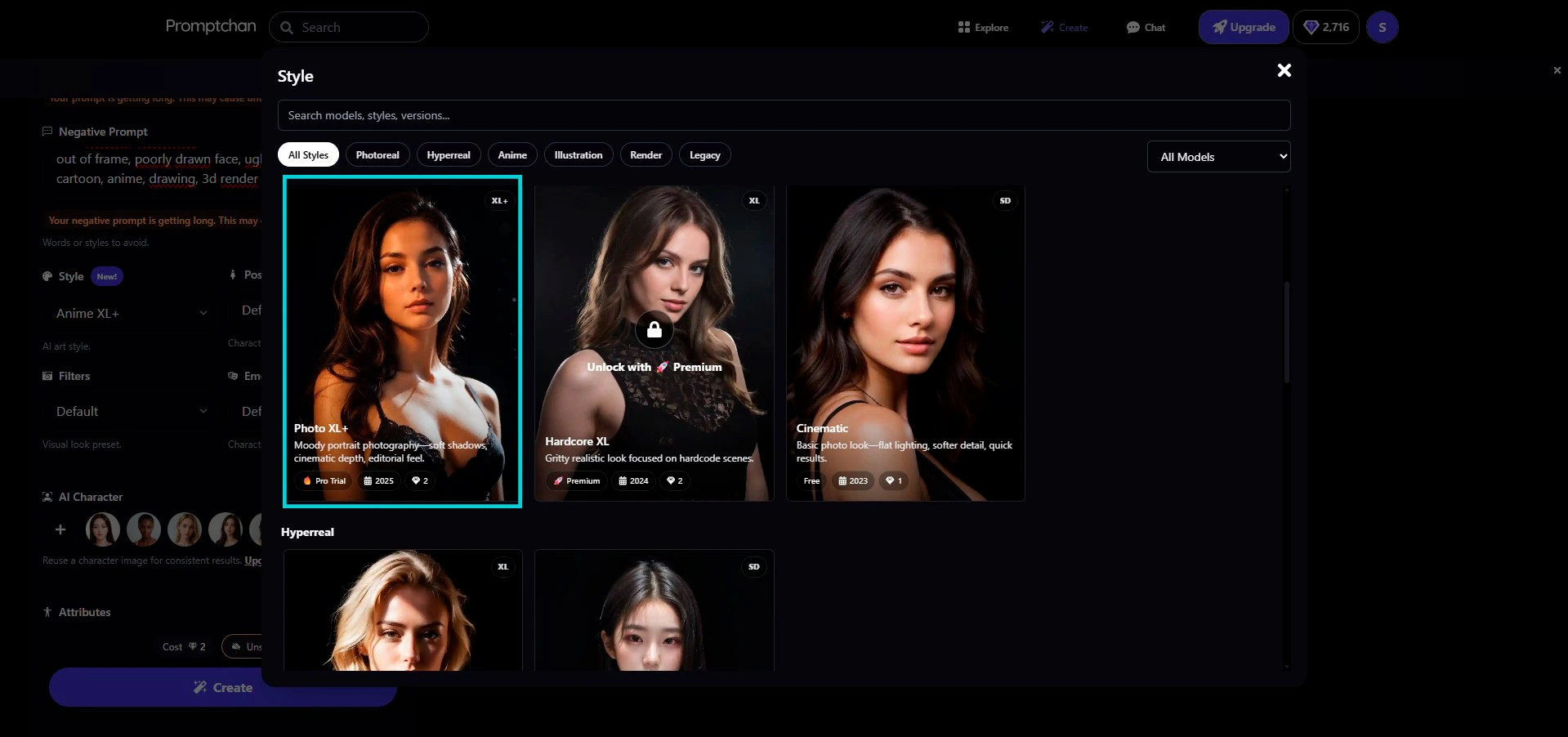
This is the most important choice in the guide. A few markers:
- Photo XL+ — “portrait” photo render, soft shadows, editorial look. Top pick for realistic.
- Cinematic — a free model, simple photo look, fast render. Perfect for testing.
- Hardcore XL / some XL+ — Premium-only (padlock on the thumbnail).
Each thumbnail shows its version (SD / XL / XL+), its year and its Gem cost (1 or 2). A free model costs fewer Gems than a Pro one — which is why the Cost changes with your pick.
Tip: start with Cinematic (free, 1 Gem) to dial in your prompt, then switch to Photo XL+ once the scene works. You save Gems on the failed tries.
Step 5 — Attributes (then you fire)
Below the Style, there are two useful blocks before you click:
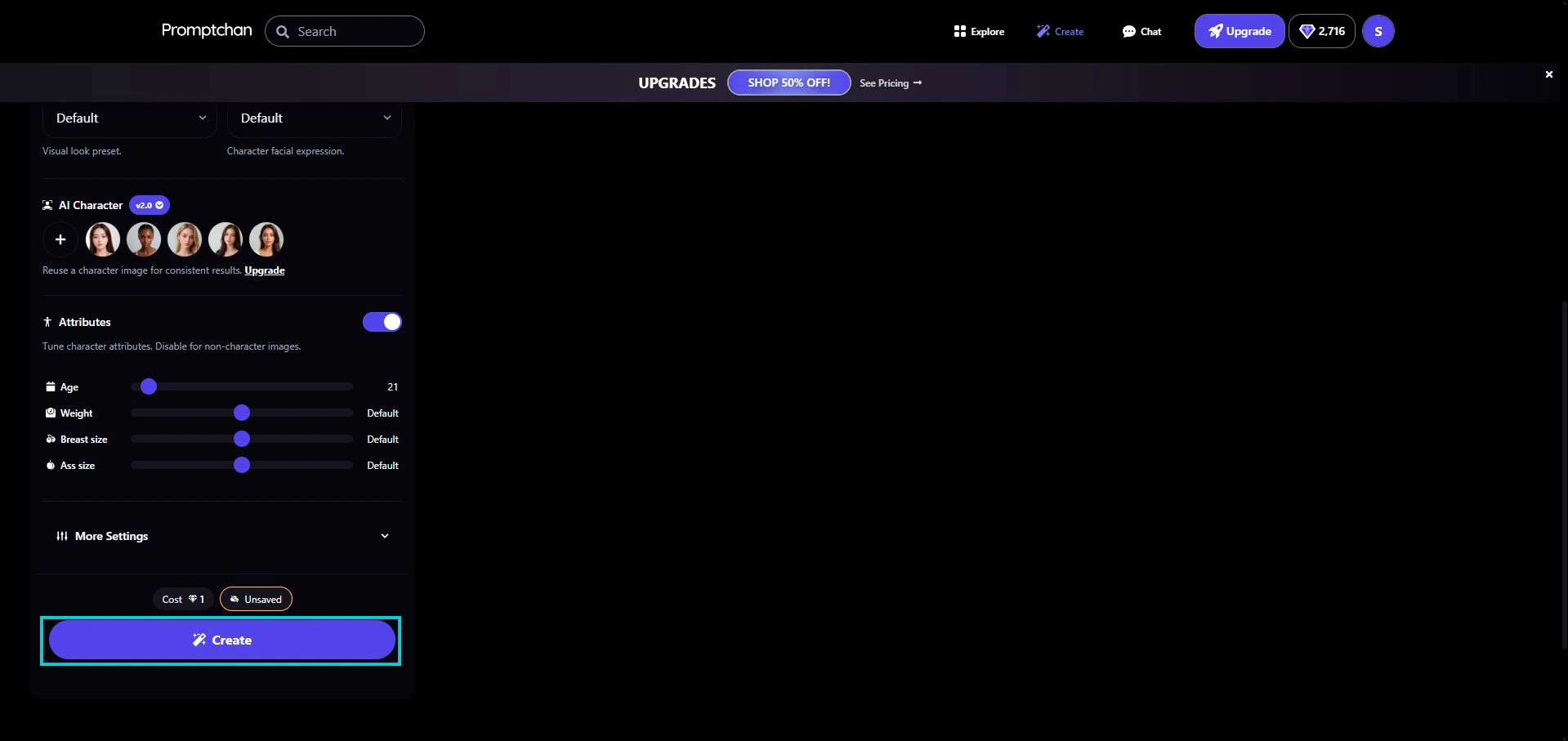
- AI Character — you can reuse a character to keep the same face from one image to the next (face continuity). Handy for building a consistent series. Some options are Pro.
- Attributes — a toggle that opens sliders to fine-tune the character: the age (keep it on an adult), the weight and the body. You can turn it off for an image with no character (landscape, object…).
When you’re happy with the setup, check the Cost at the bottom (1 Gem here) and hit the big Create button.
Step 6 — Your generated image
Give it a few seconds. The result shows up to the right of the panel.
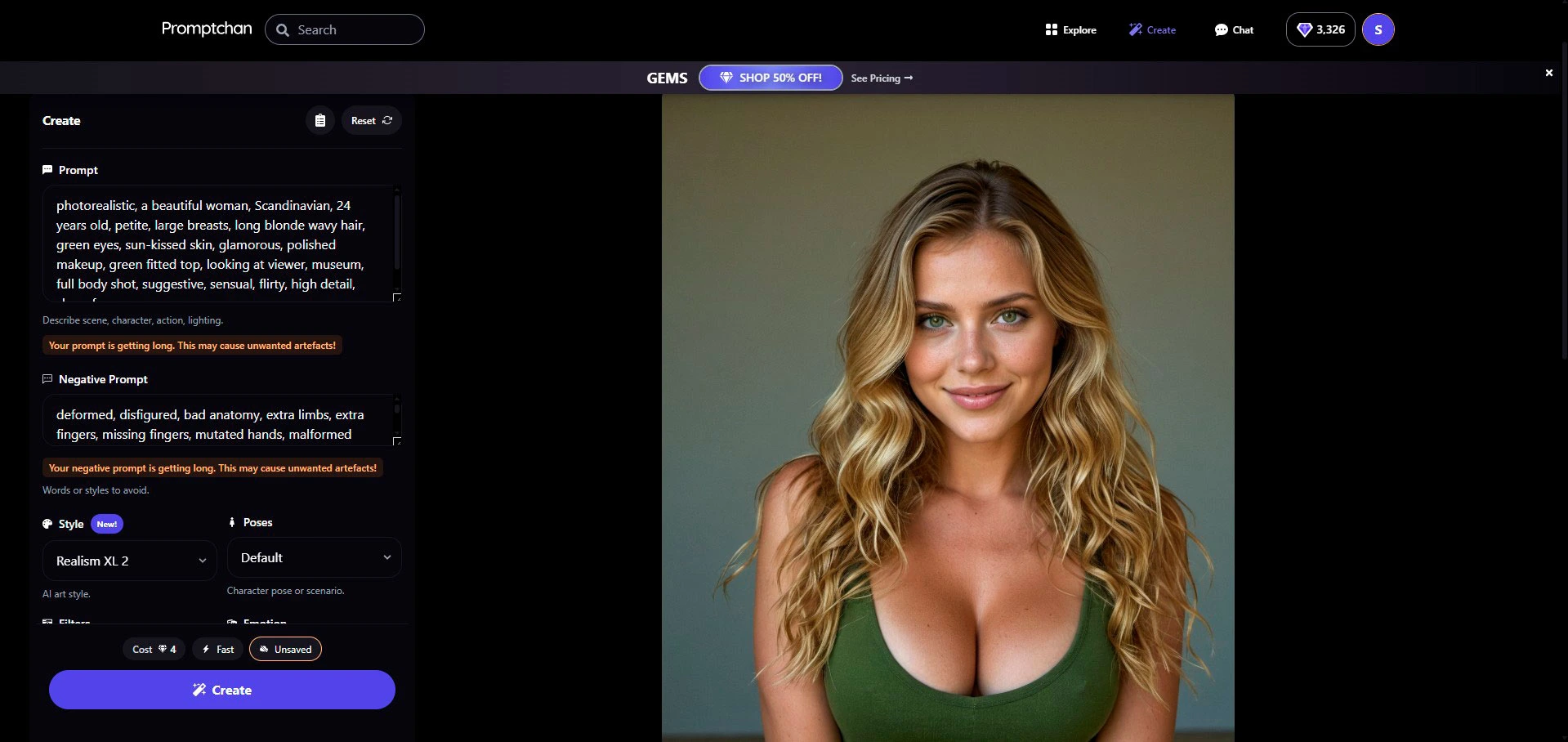
The detailed prompt (golden-hour light, the outfit, the full body framing) did the job: it’s photorealistic and sharp. If the face or the hands let you down, it’s almost always the negative prompt you need to beef up (add bad anatomy, extra fingers…), not the main prompt.
Tip: if an image is 80% there, rerun the same prompt rather than rewriting everything — each generation is different, you eventually land the good one.
Step 7 — What to do with your image
Hover (or click) your image: an action bar appears at the top.
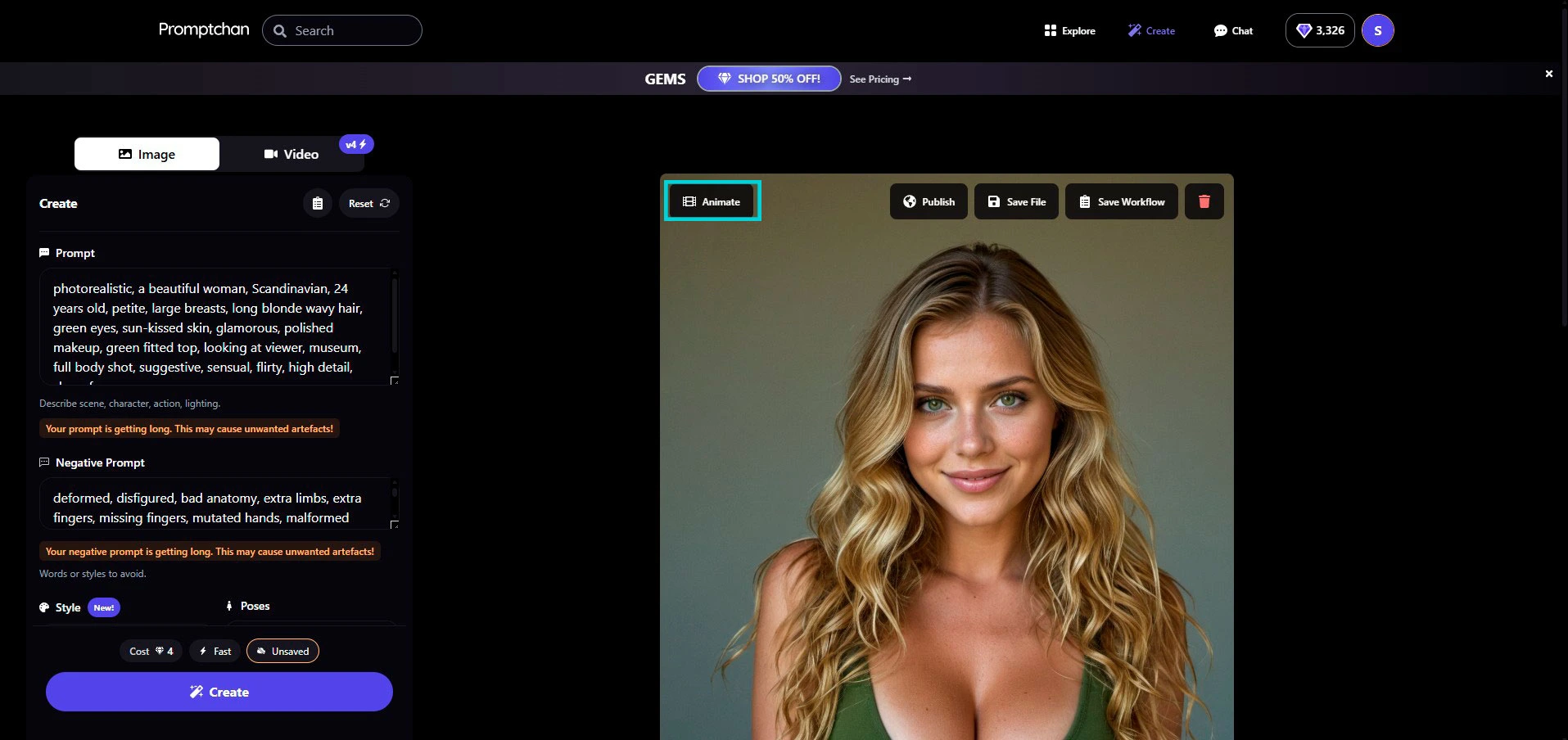
- Animate — turns your photo into an AI video. One click, the AI handles the animation. (Costs more Gems, it’s Promptchan’s big bonus.)
- Publish — shares your creation to the public Explore feed.
- Save File — downloads the image to your device.
- Save Workflow — saves all your settings (prompt, negative, style, attributes) to reuse later without retyping everything. Do it the moment you’ve got a formula that works.
The Animate option is what turns the photo into a clip — exactly the animated preview you saw at the top of this guide, from that same image. The full step-by-step is in our guide on creating an AI video from a photo.
Gem cost recap
| Action | Cost |
|---|---|
| Image (free model, e.g. Cinematic) | 1 Gem |
| Image (Pro model, e.g. Photo XL+) | 2 Gems |
| Animate the image into video | More Gems (depending on length) |
| Download (Save File) | Free |
| Publish to the feed | Free |
When you sign up, you get 5 free Gems — enough for your first tries. For full NSFW and Premium styles, you need to go Pro (price detail in our review).
Classic mistakes to avoid
- Skipping the Negative Prompt — that’s mistake #1. Without it, you get six-fingered hands and watermarks. Put in at least
bad anatomy, extra fingers, watermark, text. - Picking a Pro model to test — you burn 2 Gems per try. Dial in your prompt on Cinematic (free) first.
- Too short a prompt — “sexy woman” gives you something generic. Specify the age, the outfit, the pose, the lighting.
- Writing in your own language — it works, but the result is more stable in English.
- Forgetting Save Workflow — when you finally hit the right formula, save it. Otherwise you start from scratch next time.
FAQ
How many Gems does an image cost on Promptchan?
Between 1 and 2 Gems depending on the model (Style) you pick: a free model like Cinematic costs 1 Gem, a Pro model like Photo XL+ costs 2. The Cost shows at the bottom of the Create panel before you fire. On sign-up, you get 5 free Gems.
What is the Negative Prompt?
It’s the field where you list what the AI should avoid: messed-up hands, extra fingers, text, watermark, bad anatomy… It’s what cleans up the result. Beginners skip it and wonder why their images come out wrong — nine times out of ten, that’s it.
Can I keep the same face across several images?
Yes, via the AI Character section: you reuse a character as a reference and the AI keeps face continuity from one image to the next. Handy for building a consistent series rather than different faces every generation. Some options of this feature are Pro.
Does the free tier let you generate NSFW?
No. On the free tier, Promptchan stays in fail-safe mode: NSFW and some Premium styles are locked. You can generate soft images and test the tool, but you need to go Pro to unlock full adult content. Price detail in our review.
Going further
— Create an AI video from a photo with Promptchan — the next step, screenshot by screenshot
— The AI girlfriend prompt generator (free) — the base of any good image
— Our full Promptchan review — price, Gems, NSFW, verdict
— How to cancel Promptchan — the real Centrobill flow, screenshot by screenshot
— Generate an image with Xotic AI — to compare
— The best AI Girlfriend apps compared 2026
→ Our full Promptchan review
→ All our tutorials
→ The best AI Girlfriend apps compared 2026