Create an AI Video From a Photo With Promptchan
Turn a Promptchan image into an AI video, screenshot by screenshot: the Animate button, the motion settings, and the clip up to 10 seconds. Start from a generated photo and animate it in one click. Tested 2026.
Before / after — the same image, animated in a single click:
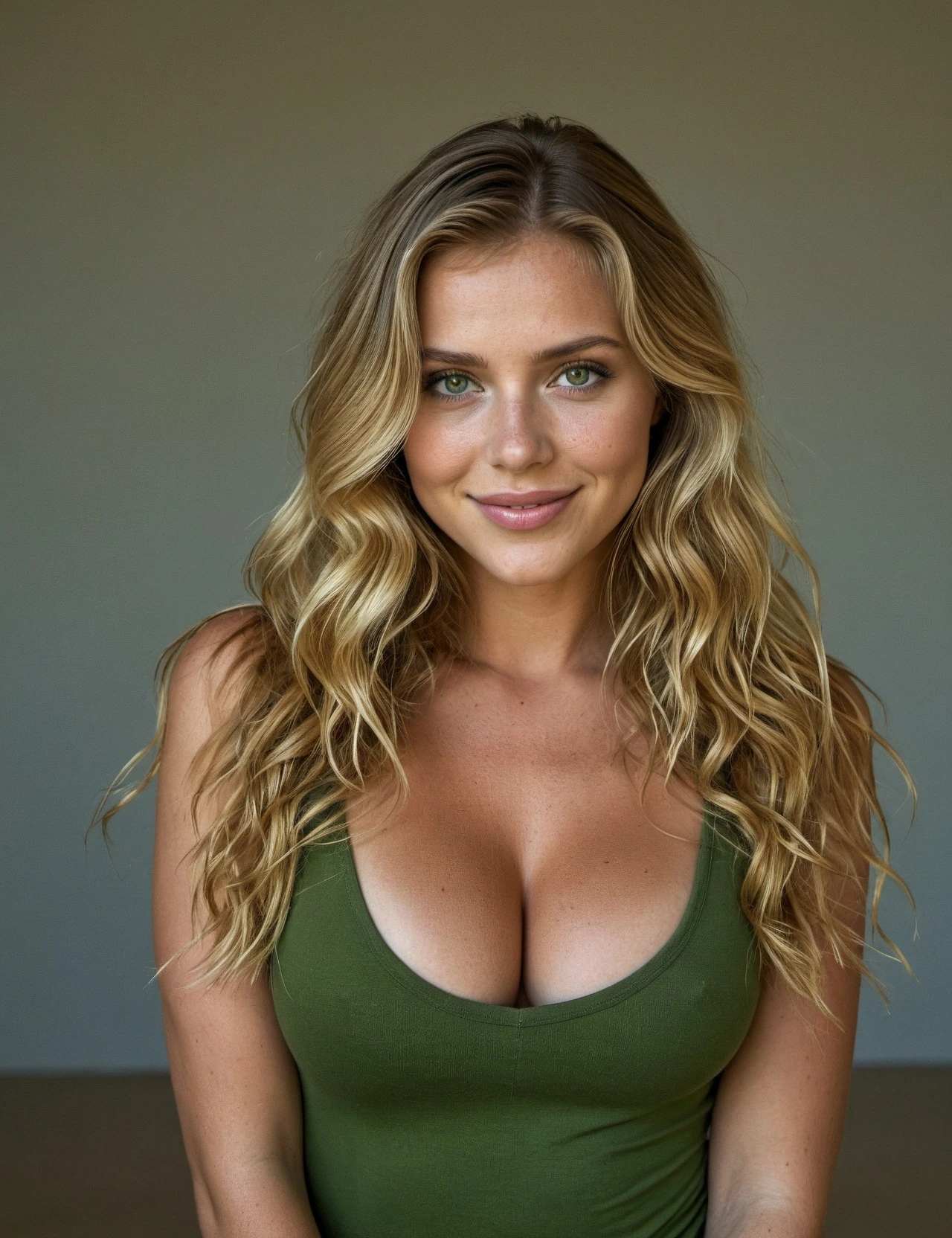
- Start from an image — one you just generated, or any of your creations
- The Animate button — it shows up in the action bar above the image
- The video goes up to 10 seconds, in high fidelity, with the same unfiltered prompts as images
- Cost — more than an image: 25 Gems on Max quality in our test, less on Standard (shows before you fire)
Don't have an image yet? Start by generating a Promptchan image, then come back here.
Promptchan’s big plus is that a still image doesn’t stay still. The Animate button turns it into an AI video — a short clip where your character moves, breathes, looks at you. No need to rewrite a prompt: you start from the photo and the AI handles the motion. Here’s how, screenshot by screenshot.
How do you create an AI video from a photo on Promptchan?
To animate a photo on Promptchan: open an image you’ve generated, click Animate in the action bar above the image, choose the motion (Motion: Auto or Prompt) and the quality, then click Create. The AI generates the video (up to 10 seconds) in the background from your photo. Budget ~25 Gems on Max quality — the cost shows before you confirm.
The step-by-step is below.
Before you start: what you need
- An already generated image on Promptchan. If you don’t have one, first follow our guide on generating an image (1-2 Gems, 5 minutes).
- Enough Gems: video costs more than an image. Your balance is top right.
- A good visual starting point. The sharper and better-framed your photo, the better the animation. To start from a clean base, run it through our free prompt generator.
Step 1 — Open your photo and find the Animate button
Start from a generated image. When you hover (or click) it, an action bar appears at the top: Animate, Publish, Save File, Save Workflow. Animate is the one we want.
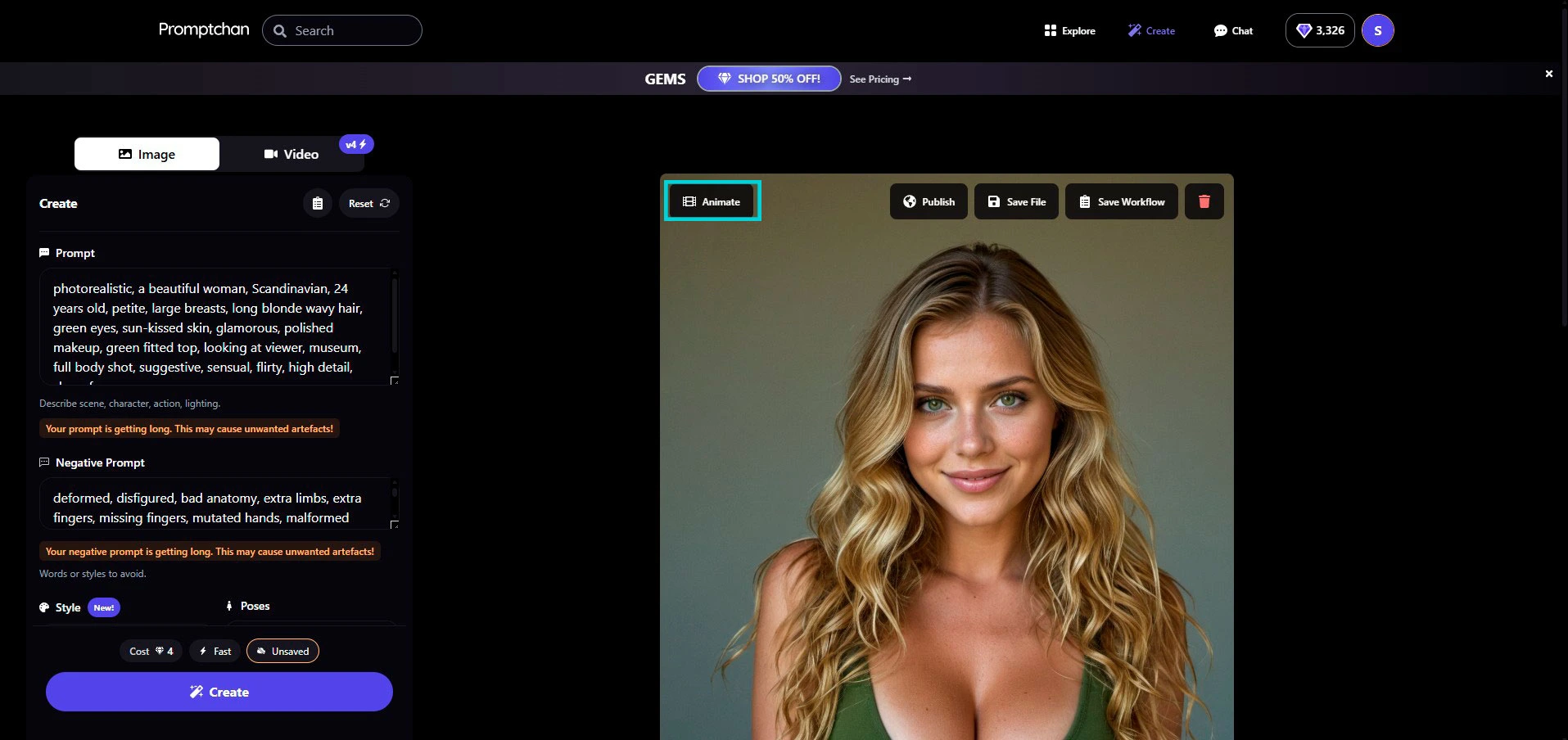
Keep in mind: no need to start over from a prompt. The animation runs straight from the photo — the AI figures out the motion on its own.
Step 2 — Set your animation and fire
Once on Animate, a settings panel opens. Here’s what to know:
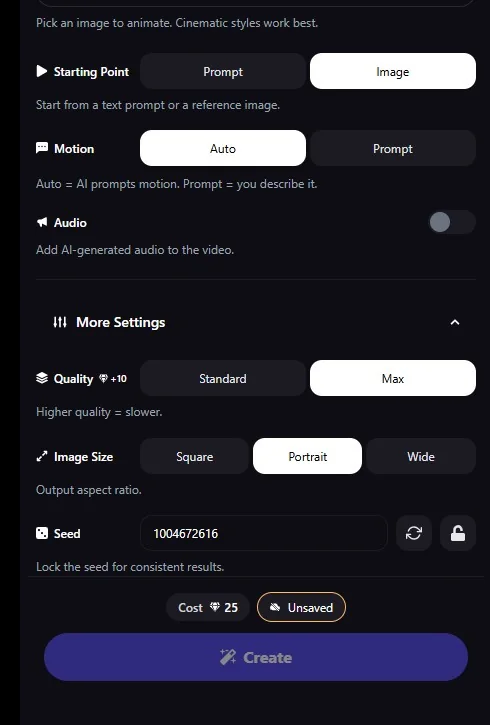
- Starting Point — leave it on Image (you’re animating your photo, not a text prompt).
- Motion — Auto (the AI picks the movement on its own) or Prompt (you describe the motion yourself, unfiltered like images). For a first try, Auto is more than enough.
- Audio — a toggle to add an AI-generated soundtrack. Off by default.
- More Settings:
- Quality — Standard or Max (+10 Gems, and slower to generate).
- Image Size — Square / Portrait / Wide, the output aspect ratio. Keep Portrait if your photo is portrait.
- Seed — the number that locks the randomness. Lock it (the padlock) to land the same render if you rerun.
- At the bottom, the Cost shows (here 25 Gems on Max quality). Check your balance, then click Create.
Tip: for your first test, stay on Standard with Motion: Auto. You see what the AI does with your photo without burning 25 Gems, then you switch to Max once the motion works.
Step 3 — Get your video
The generation runs in the background (a bit longer than an image). When it’s ready, you get an animated clip from your photo:
From there, you can download it (Save File) or publish it to the Explore feed, just like an image.
Gem cost recap
| Action | Cost |
|---|---|
| Generate the starting image | 1 to 2 Gems (see the guide) |
| Animate the image into video | ~25 Gems on Max quality (less on Standard) |
| Download the video (Save File) | Free |
| Publish to the feed | Free |
The exact animation cost shows before you fire — no nasty surprise. For full NSFW, you need to go Pro (price detail in our review).
Classic mistakes to avoid
- Starting from a blurry or badly framed photo — animation amplifies the flaws. Start from a sharp image.
- Going straight to Max quality — it climbs to ~25 Gems and is slower. Test on Standard first, switch to Max once the motion works.
- Thinking you need to rewrite a prompt — no, the animation runs from the photo. You just steer the motion.
FAQ
How long can the video be?
High-fidelity video goes up to 10 seconds on Promptchan. In the Animate panel, what drives the Gem cost is mainly the Quality (Standard or Max), not a length to set down to the second. For a first test, stay on Standard.
Do you need to rewrite a prompt to animate?
No. The animation runs straight from your photo: you click Animate, the AI figures out the motion. You can steer the animation, but you don’t have to retype the whole scene description.
How many Gems does the animation cost?
More than an image. In our test, 25 Gems on Max quality (less on Standard) — the exact cost shows before you confirm, and it depends mainly on the Quality you pick. Go by the amount shown in the app when you fire.
Going further
— How to generate an image with Promptchan — the previous step, screenshot by screenshot
— The AI girlfriend prompt generator (free) — for a clean starting photo
— Our full Promptchan review — price, Gems, NSFW, verdict
— The best AI Girlfriend apps compared 2026
Animate a photo on Promptchan →
→ Our full Promptchan review
→ All our tutorials
→ The best AI Girlfriend apps compared 2026