How to generate an image on Xotic AI
Generate an image with your AI companion on Xotic. 50 XOT per image — pick a character from the gallery or use one of your custom Characters. Video bonus at 175 XOT (~8 min, audio description for the soundtrack). Tested April 2026.
Demo — here's the kind of image you'll get:
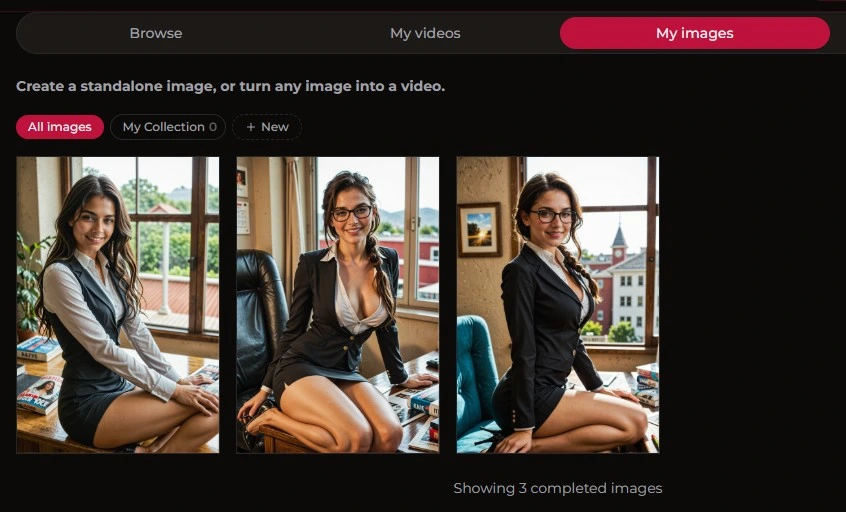
- With a character: 50 XOT — hit the gallery (Val, Anoushka, Faye…) or use your custom Characters
- Without a character (pure prompt): 50 XOT — just click Create without character for total freedom
- AI video: 175 XOT, ~8 min, NSFW only — includes **audio description**, seed, and a 20-min refund policy
- Bonus: share your stuff on the feed and you'll earn XOT when people like it
For the full Xotic AI verdict, check out our detailed review.
Xotic AI is one of those rare AI companion apps where image generation is wired directly to your character. You pick Val (or whoever you’ve unlocked), describe the scene, and click. 50 XOT, 1 image, and you’re done in about 15 seconds.
Plus, if your prompt game is strong, you can actually earn XOT back by sharing your creation on the feed. This walkthrough clears up how it works.
How do you generate an image on Xotic AI?
To get an image going: log in, hit the My images tab, and keep the Image toggle on. Pick a character or hit Create without character to go full manual. Describe your scene in Describe the scene, then click Create 1 image. It’s 50 XOT per image and takes maybe 10-15 seconds. Once it’s ready, you can click Create Video, Create Similar, Download, or Add to Collection.
Here is the step-by-step breakdown.
Before you start: what you need
- A Xotic AI account (signing up is free)
- At least 50 XOT in your wallet (check the top-right, next to the Join button)
- Optional: a character from the gallery — though Create without character works just fine if you want to fly solo
Step 1 — Open the generator
Once you’re in, head to My images. You’ll find it in the left menu or the top tabs (Browse / My videos / My images / Collections).
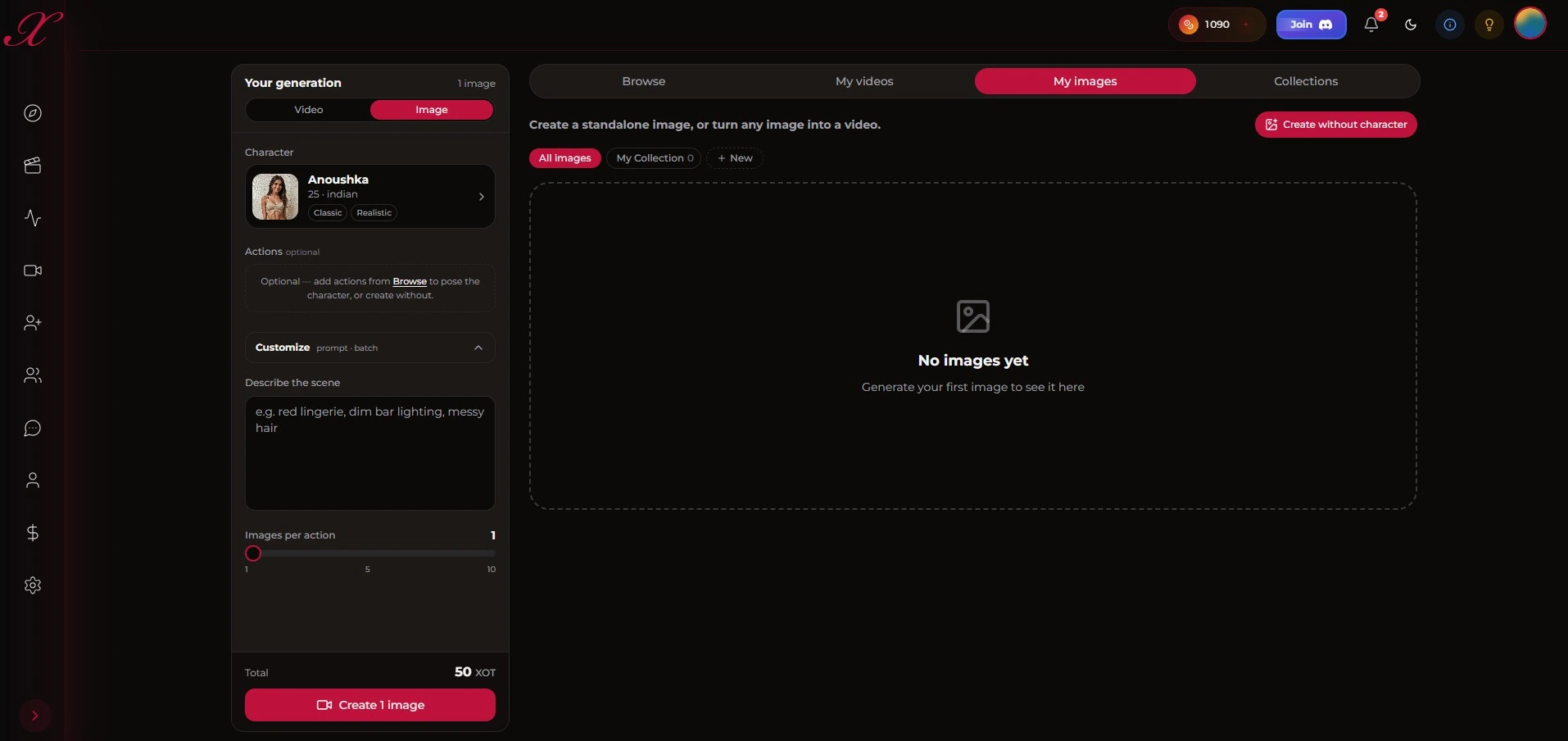
The Your generation panel is on the left — that’s your dashboard. The right side stays blank until you actually make something.
Heads up: it’s 50 XOT for an image, but 175 XOT for a video (which is 3.5× pricier). Videos also take way longer to cook (see Step 4).
Step 2 — Configure your image
There are four main spots to look at in the Your generation panel.
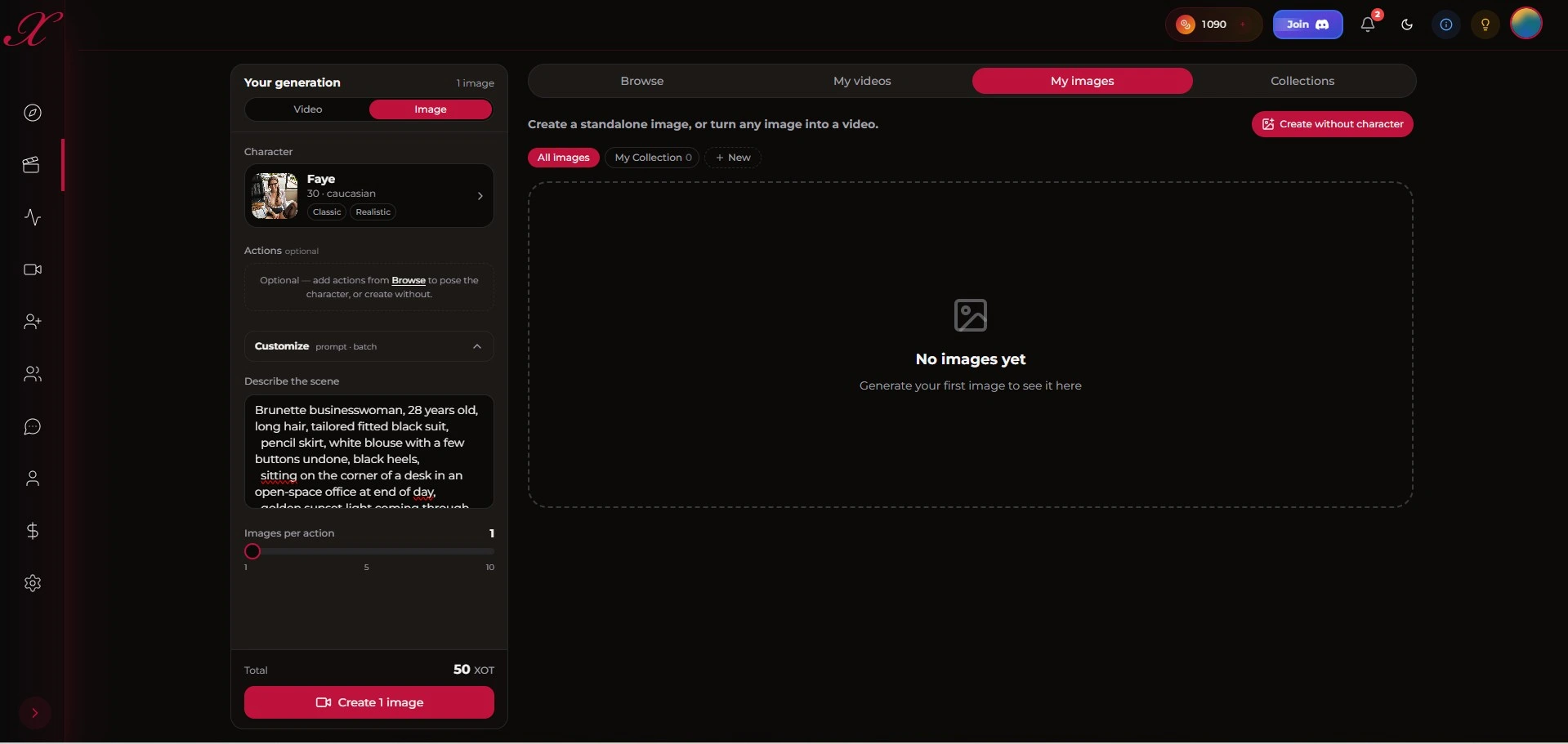
1️⃣ Image / Video toggle
Top of the panel. Keep Image selected. The Video toggle is for when you want a clip (higher cost, longer wait, and NSFW-only).
2️⃣ Character — optional (3 paths)
You’ve got three ways to start:
- Xotic general gallery: 500+ pre-made characters like Val or Faye. The AI uses their face as an anchor so the face continuity stays dialed in.
- Your Characters: if you’ve built a custom persona, you’ll find them here.
- Create without character: pure prompt mode. No character anchor, so you have more freedom, but the face won’t be consistent across multiple images.
Honestly, it’s 50 XOT either way.
3️⃣ Describe the scene — your prompt
Describe the whole vibe: the subject, outfit, pose, facial expression, and the lighting. Honestly, the more specific you get, the better the result. Here’s the prompt we used for the image in Step 3:
“Brunette businesswoman, 28 years old, long hair, tailored fitted black suit, pencil skirt, white blouse with a few buttons undone, black heels, sitting on the corner of a desk in an open-space office at end of day, golden sunset light coming through the window, seductive smile, playful wink at the lens, photorealistic, shallow depth of field, magazine quality.”
The trick: always add a facial cue (smile, wink, laugh…). Without it, the AI usually hands you a neutral, “dead-inside” expression. That’s the secret to making it feel alive.
4️⃣ Images per action (1-10 slider)
You can fire off 1 to 10 variants at once. Each one is 50 XOT, so 10 images will set you back 500 XOT. The Total updates at the bottom so you can track it.
Tip: stick to 1-2 while you’re tweaking your prompt. Once it’s perfect, bump it up to 3-5 to get some variety.
Step 3 — Your generated images
Give it about 10-15 seconds. The results show up on the right under All images.
We got 3 variants here with different poses and lighting. The detailed prompt — specifically the smile + wink — really worked. It looks photorealistic and the character is actually emoting. Without those keywords, these would have been three blank stares.
Tip: if a variant is almost perfect, just hit Create Similar to riff on it instead of starting over.
Step 4 — What to do with your image
Click any image to open a menu with 5 options.
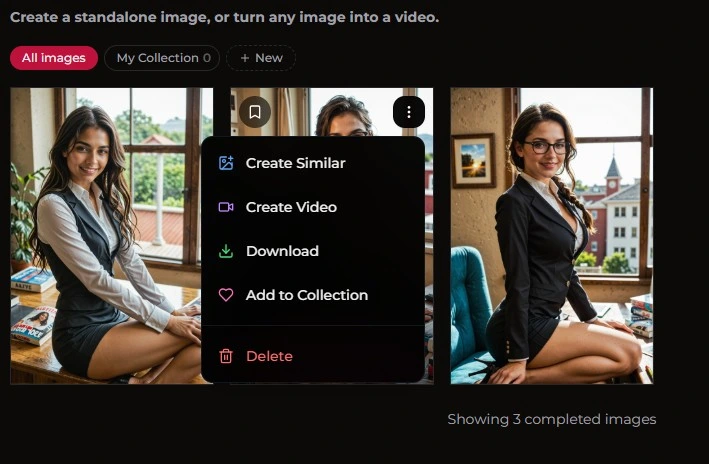
Create Similar — 50 XOT
This makes a new variant in the same style. It’s the best way to iterate without retyping your life story in the prompt box.
Create Video — the shortcut
This turns your image into an AI video. It opens the video interface using your image as the start point. It’s 175 XOT, takes about 8 minutes, and it’s NSFW-only.
Check Step 5 for the full specs.
Download
Saves the image to your device for free.
Add to Collection
Sorts it into a folder. It’s great for building a moodboard before you commit to a video.
Delete
Removes it from your gallery. This is permanent.
Step 5 — Generate a video (175 XOT)
Ready for video? You can get there from an image or hit the My videos tab. The video interface has three big differences.
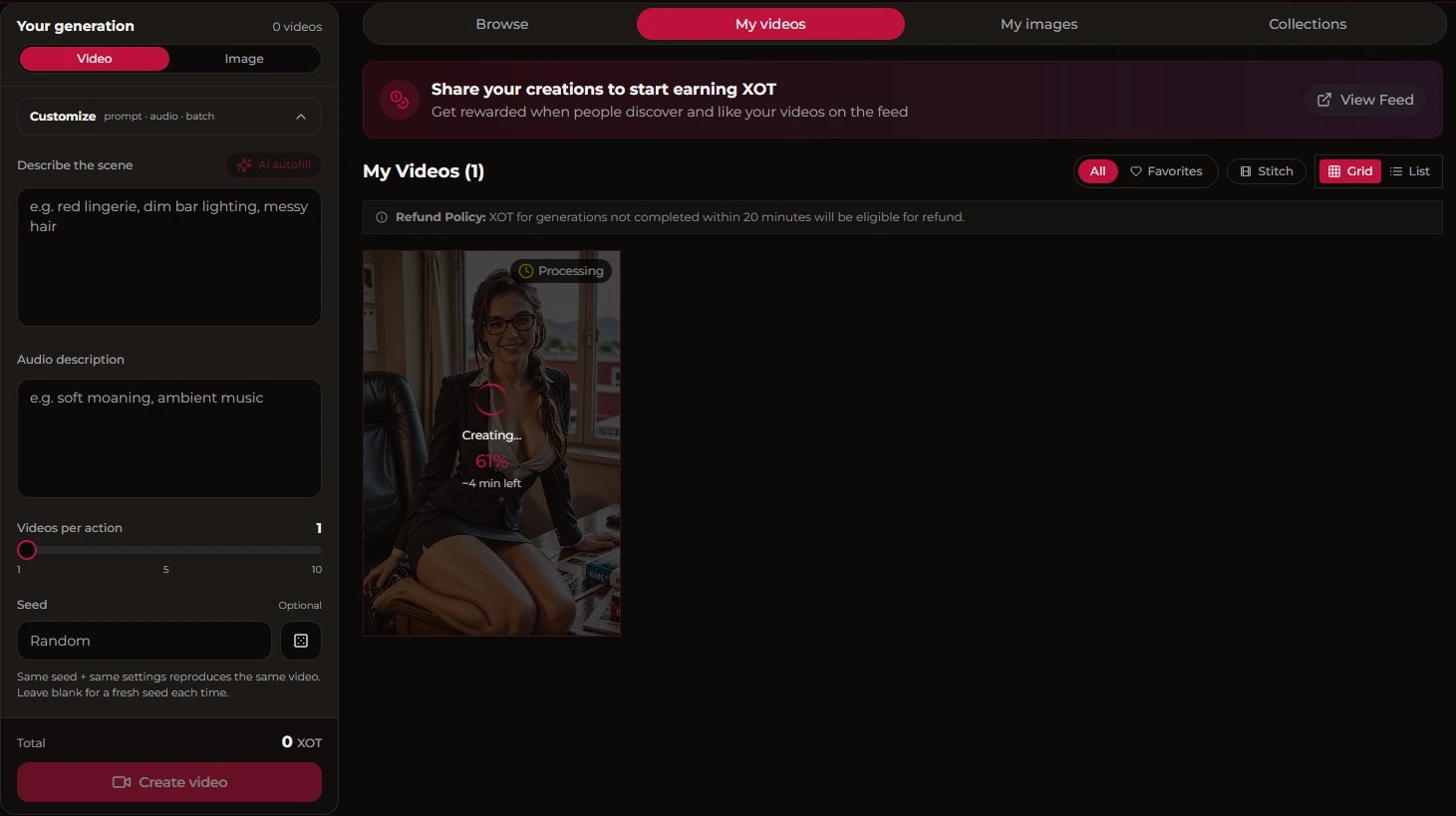
Audio description — the soundtrack
This is pretty rare for AI apps: you can actually describe the soundtrack. Think stuff like “soft moaning, ambient music”. The AI then builds the clip with a coherent audio track. It’s what gives Xotic that immersive edge — silent clips just don’t hit the same.
Seed — for perfect repeats
The Seed is the number that controls the generator’s “randomness”.
- Same seed + same prompt = the exact same video again.
- Leave it blank or hit Random for something fresh every time.
It’s great for reproducing a clip you loved or testing a tiny prompt change without changing the whole scene.
Refund policy — 20 minutes
This is a rare safety net: if your video isn’t done in 20 minutes, you’re eligible for a refund of your XOT. The site literally tells you: “XOT for generations not completed within 20 minutes will be eligible for refund.” You won’t get burned if the AI stalls.
The result
Here’s what you get — Xotic video from a prompt and audio description:
While it’s rendering (~8 min), you can keep chatting with Val or browse the feed. It runs in the background, so you’re not stuck staring at a loading bar.
Bonus — Earn XOT by sharing
Xotic has a share-to-earn system: post your clips to the community feed and you earn XOT when people find and like them.
“Share your creations to start earning XOT — Get rewarded when people discover and like your videos on the feed.”
If you put in the work on your prompts, you can actually earn XOT back.
XOT cost recap
| Action | Cost | Time |
|---|---|---|
| Image | 50 XOT | ~10-15s |
| Create Similar | 50 XOT | ~10-15s |
| Image → video | 175 XOT | ~8 min (background) |
| Download | Free | instant |
| Sharing on feed | Potential XOT gain | — |
Common mistakes to avoid
- Crushing the slider to 10 — that’s 500 XOT in one click. Stick to 1-2 while you’re tuning.
- Prompting without emotion — no
smileorwinkmeans you get a blank stare. - Trying to skip straight to video — you can’t. You have to generate an image first.
- Short prompts — “sexy blonde” is boring. Spec out the age, outfit, and lighting to make it worth the 50 XOT.
- Forgetting the toggle — check the top of the panel, or you might fire off a video when you just wanted a pic.
Going further
— Our full Xotic AI review — XP system, memory, and more
— How to generate a photo on Joi AI — direct comparison
— Generate an image on Candy AI
— Our Candy AI review
→ Our full Xotic AI review
→ All our tutorials
→ Best AI Companion Comparison 2026