How to generate a photo with Joi AI
Generate AI photos with Joi step by step. Free from scratch, 50 Neurons from a model, 200 to turn it into a video, 1000 to turn it into a chattable character. Tested April 2026.
What you're about to generate:
- Photo from scratch: free, generate as many as you want
- Photo from an existing model: 50 Neurons — start from a gallery character
- Photo → AI video: 200 Neurons — one click on your generated photo
- Photo → chattable character: 1000 Neurons — turn your photo into an AI you can actually talk to
Full Joi AI verdict in our detailed review.
Joi AI is one of the few apps that lets you generate photos for free — as long as you start from scratch. Want to push further? Video, chattable persona — that’s a few Neurons.
The catch: the interface throws options at you without spelling out what costs what. This tutorial fixes that.
How to generate a photo with Joi AI
Log in, click Create AI in the top menu, pick Image, write your description (or pull a model from the gallery for 50 Neurons), then hit Create for free. The photo lands in seconds. From there you can click Make video (200 Neurons) or Turn into character (1000 Neurons) to take it further.
Step-by-step with screenshots below.
Before you start — what you need
- A Joi AI account (free works for from-scratch generations)
- Credits only if you want to go beyond from scratch (50 minimum to start from a model)
- No subscription needed for the basic stuff — generation is open
Step 1 — Get to the generator
You log in and you land on the gallery. That’s the entry point.
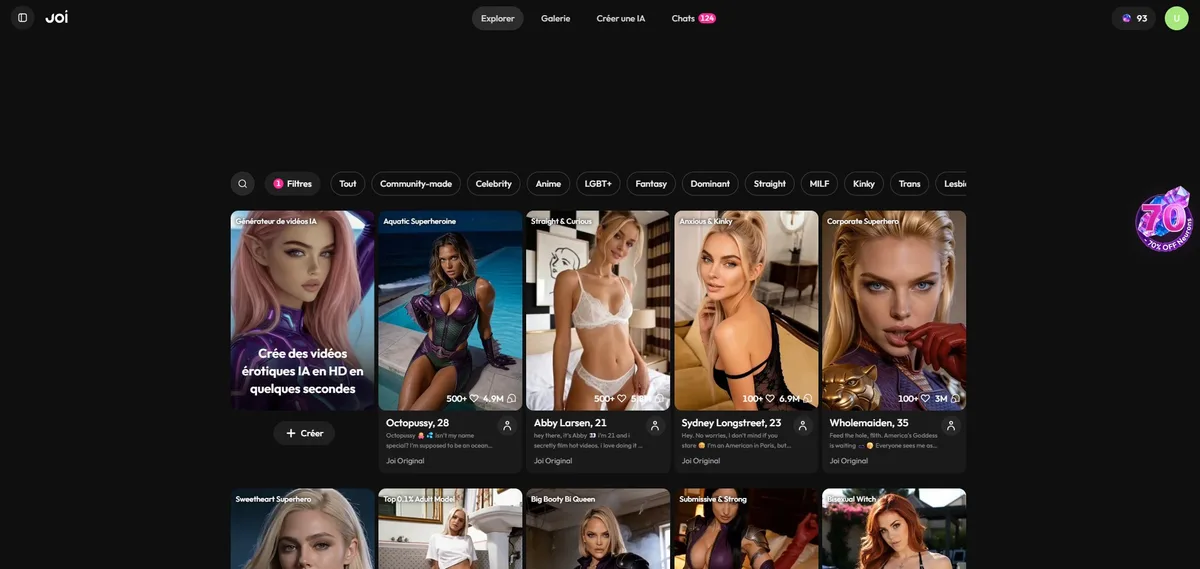
Two ways to start:
- Create erotic AI videos on the left (direct shortcut to the creator)
- Create AI in the top nav
Both go to the same place — the image creator.
Step 2 — Configure your image
Now you’re on the Create screen. Everything happens here.
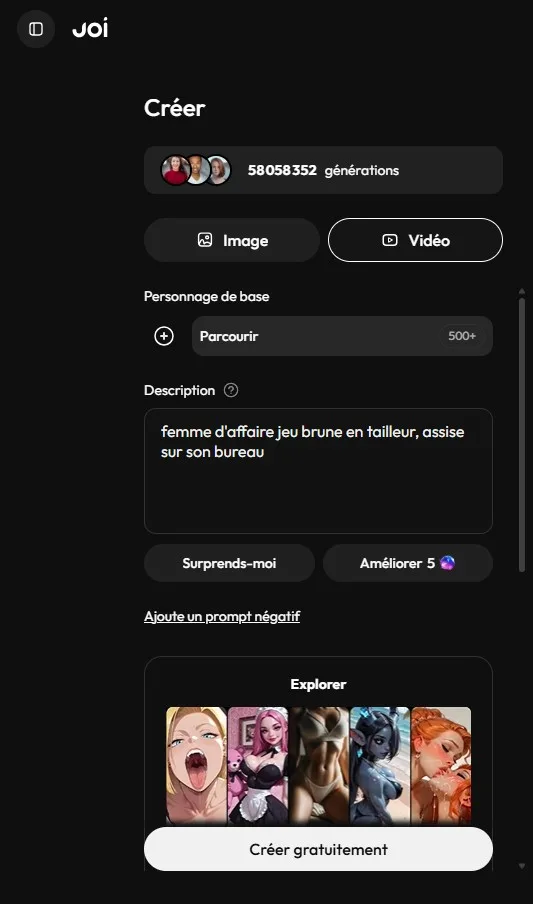
4 zones to know about:
1️⃣ Image or Video toggle
Top of the panel. Stay on Image — the video gets generated after, from a photo. That’s a hard requirement.
2️⃣ Base character — optional (50 Neurons if turned on)
This is the only place where Neurons sneak into the basic flow. If you click Browse 500+ and pick a character from the gallery, your generation flips into “from a model” mode → 50 Neurons.
Leave it empty and it’s free. The photo gets generated from scratch, based on your description alone.
Tip: start free to test your prompt. If the result is good but you want the same face on different photos, then pick a base character.
3️⃣ Description — your prompt
Describe the full scene, not just the subject. Example: “brunette businesswoman in a black suit, sitting at her desk, natural lighting”.
Click Surprise me to let the AI roll a random prompt, or Improve (5 Neurons) to enrich the one you wrote.
The Add a negative prompt option excludes what you don’t want (artifacts, weird elements). Useful for rerolls.
4️⃣ The generate button
Bottom of the screen: Create for free if you didn’t pick a model. Cost is shown next to the button — zero Neurons from scratch, 50 if you picked a base character.
Step 3 — Your generated photos
Joi typically spits out several variations for the same prompt. You pick the one you want.
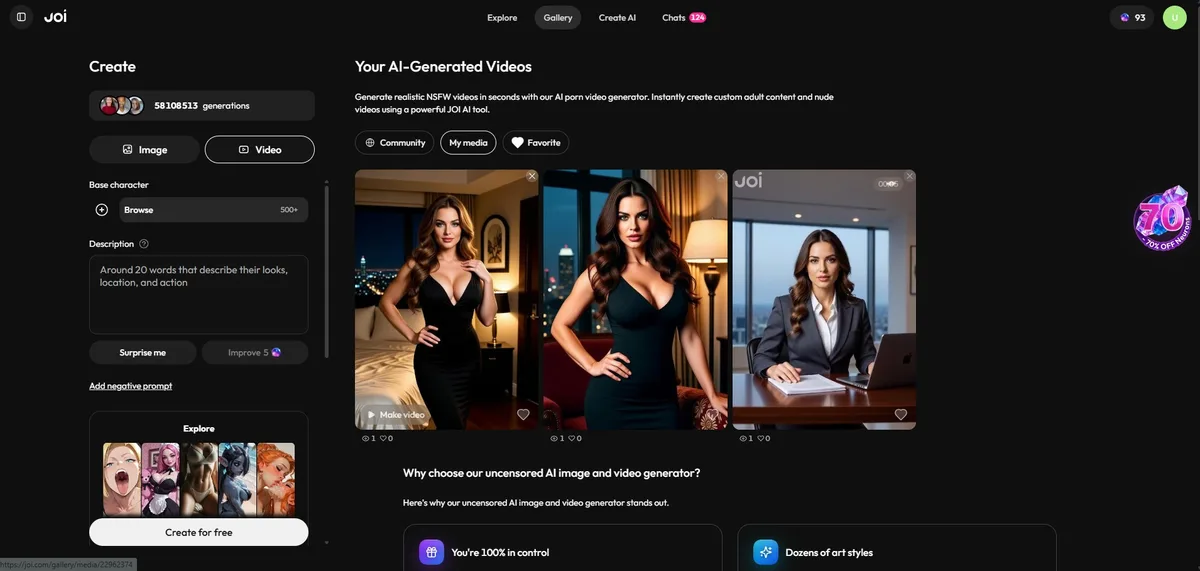
Roughly 10-15 seconds per image. If none of them work, regenerate (still free in from-scratch mode) or tweak the prompt.
Tip: prompt precision is the whole game. “Brunette woman” → vague. “Brunette woman, 28, tight black dress, hands on hips, neon backdrop” → on point.
Step 4 — What to do with your photo
This is where Joi gets interesting. Click any generated photo to open the detail view, and two buttons change the deal entirely.
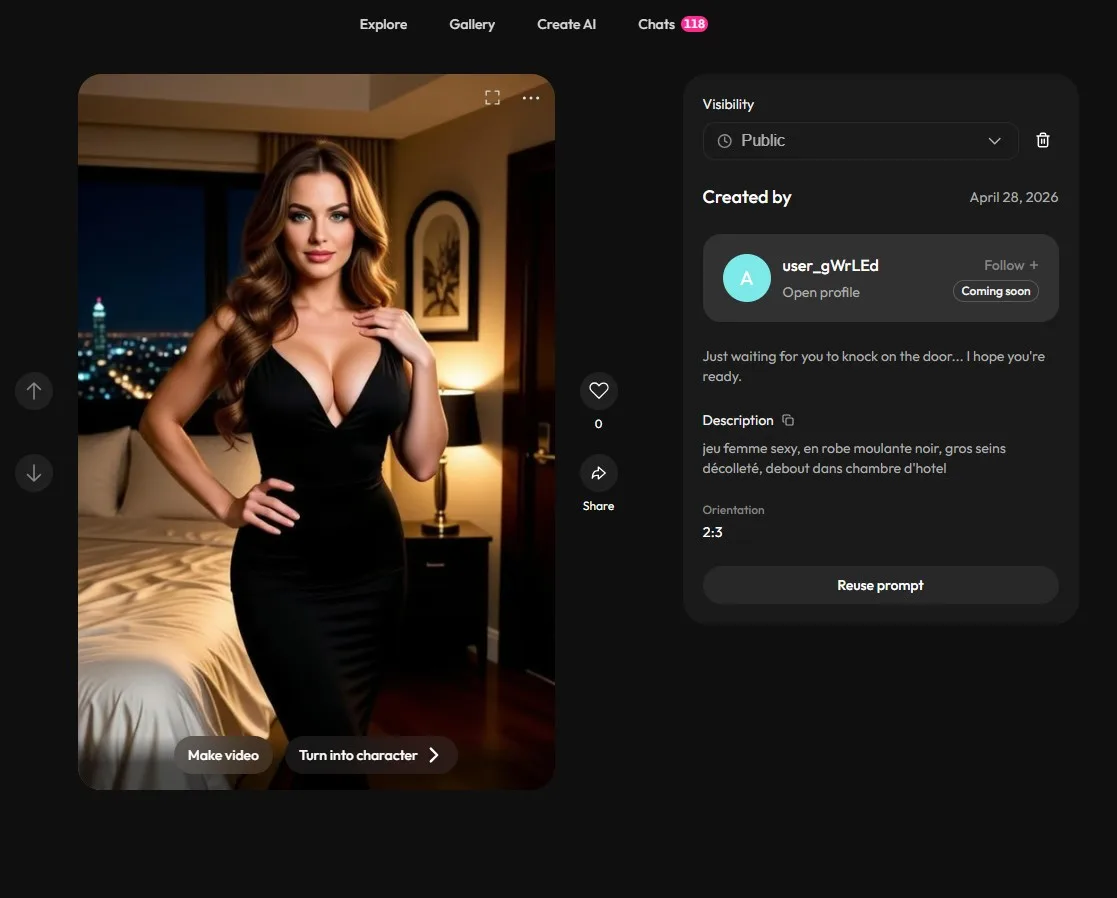
Make video — 200 Neurons
One click and your static photo becomes an animated AI video. About 30 seconds to generate. No prompt to rewrite — the AI figures out the animation on its own.
This is the best time-to-result trade in the whole Joi flow. 200 Neurons gets you an AI video that would’ve cost 10x as much a year ago.
Turn into character — 1000 Neurons
Different category entirely. Joi takes your photo and turns it into a chattable character — an AI you can actually talk to, that keeps the face from your photo, and becomes a real AI companion.
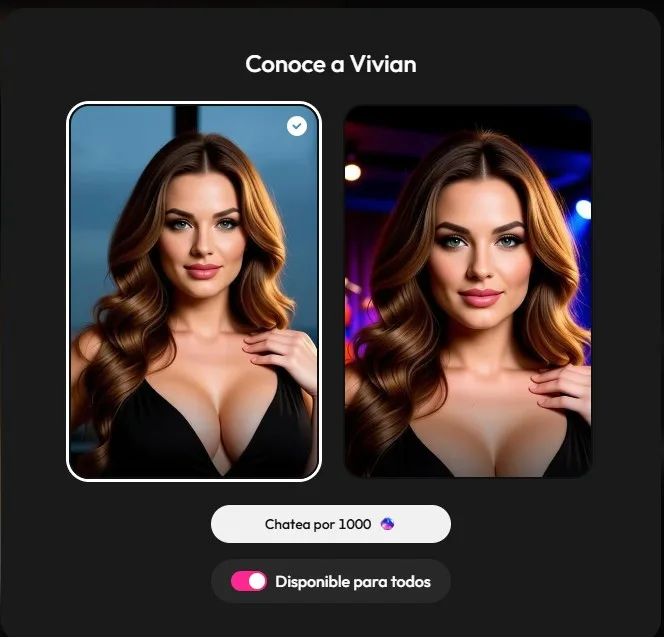
On confirmation, you get two variants of the character to choose from (different lighting, background). The Available to everyone toggle lets you share your character with the Joi community (visibility = potential like boost).
When is it worth it? If you generated a photo you really like and don’t want to lose it. 1000 Neurons ≈ a month of Joi subscription, for a permanent character that’s yours.
Credits cost recap
| Action | Cost | Time |
|---|---|---|
| Photo from scratch | Free | ~10-15s |
| Photo from a model | 50 Neurons | ~10-15s |
| Improve my prompt | 5 Neurons | instant |
| Photo → AI video | 200 Neurons | ~30s |
| Photo → chattable character | 1000 Neurons | ~1 min |
Common mistakes to avoid
- Picking a base character without realizing — make sure the “Base character” zone is empty if you want to stay free. Easy to click “Browse 500+” out of curiosity and end up at 50 Neurons per generation.
- Trying to go straight to video — can’t. You generate a photo first, then click Make video on it.
- Converting the first photo you see to a character — 1000 Neurons is real money. Generate a dozen free variations, pick your favorite, then convert.
- Prompt too short — “sexy woman” gets you a generic photo. The more you spec (age, outfit, pose, setting, lighting), the more on-target the result.
Going further
— Our full Joi AI review — verdict, pricing, alternatives
— How to generate an image with Candy AI — direct comparison
— Candy AI vs Joi AI: which to pick?
→ Our full Joi AI review
→ All our tutorials
→ Best AI Girlfriend Comparison 2026