How to Make a Long Video with OurDream AI(using Extend Video)
How to make a long video with your AI girlfriend on OurDream: generate the character from a prompt, animate the image, then extend it scene after scene with Extend Video. Screenshots, DreamCoins costs. Tested 2026.
Demo — what you're going to learn: take a single image of your AI girlfriend and turn it into a long video, scene after scene, using Extend Video on OurDream. The full walkthrough is below.
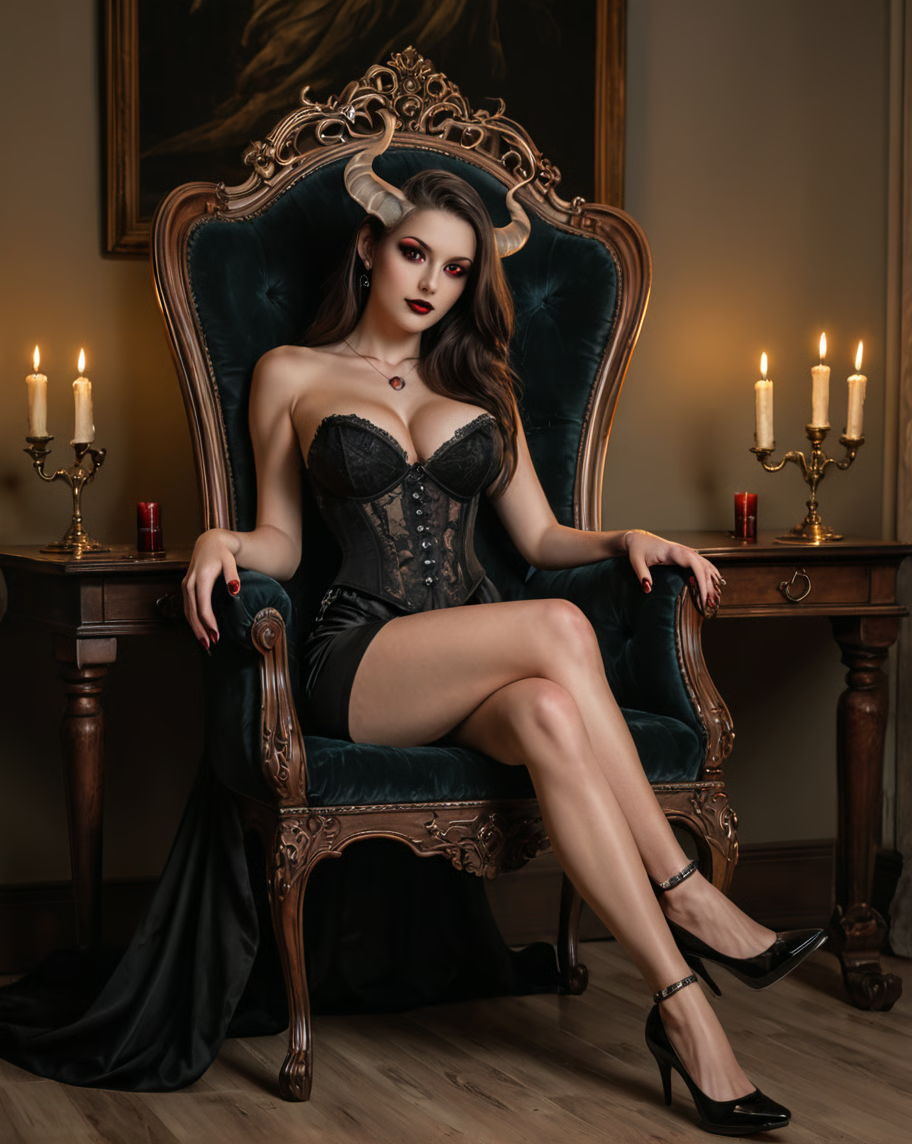
- Step 1 — The prompt: a solid prompt via our free generator
- Step 2 — The character: paste the prompt into "Design with AI" on OurDream → Generate Character (5 coins)
- Step 3 — The video: on the image, hit "Create Video" → pick an action/scene → Generate (from 100 coins)
- Step 4 — Extend Video: add the next scene to keep it going → that's what makes the video long
- The takeaway: a long video = a chain of shots (Image to Video + Extend), and it burns DreamCoins at every step
For the full verdict on OurDream, see our detailed review.
AI girlfriend animations look great… but they last a few seconds and then it’s over. Frustrating when you’ve got a real scene in mind. Good news: on OurDream, you don’t have to stop there.
The key is Extend Video: you start from a first animated shot, then add the next scene, and another one — your character keeps the same face from one shot to the next. Chain them, and you build a video that actually holds its length (up to 60s per shot) instead of a single clip.
I’ll walk you through all of it, step by step, screenshots included. It’ll just take a quick read, an OurDream account, and a bit of DreamCoins. ^^
How do you make a long video on OurDream AI?
To make a long video on OurDream: first generate your character from a prompt, animate its image into a video via Create Video (picking an action), then use Extend Video to add the next scene and continue the clip. Repeat it, and you chain the shots into a single long video. Each step costs DreamCoins.
The step-by-step is below.
Before you start: what you need
- An OurDream account (the free plan lets you test the chat and a few images, but video needs a subscription)
- A DreamCoins budget: count 5 coins to create the character, then from 100 coins per video (and it climbs fast with duration and quality)
- A good image prompt to start from a clean base — easiest route: use our free prompt generator, which hands you a clean prompt to paste straight into OurDream
- Important: OurDream does not allow uploading your own photo (anti-deepfake policy). Everything starts from a generated character, never from a real person.
Don’t want to wrestle with the prompt? Our AI girlfriend generator is free, no signup, and gives you a solid base in 30 seconds.
Step 1 — Prep your prompt
It all starts with a good prompt. Rather than staring at a blank page, head to our free prompt generator: pick the looks, the render (realistic or anime), the outfit, the setting, the lighting… and you get a clean prompt, ready to paste.
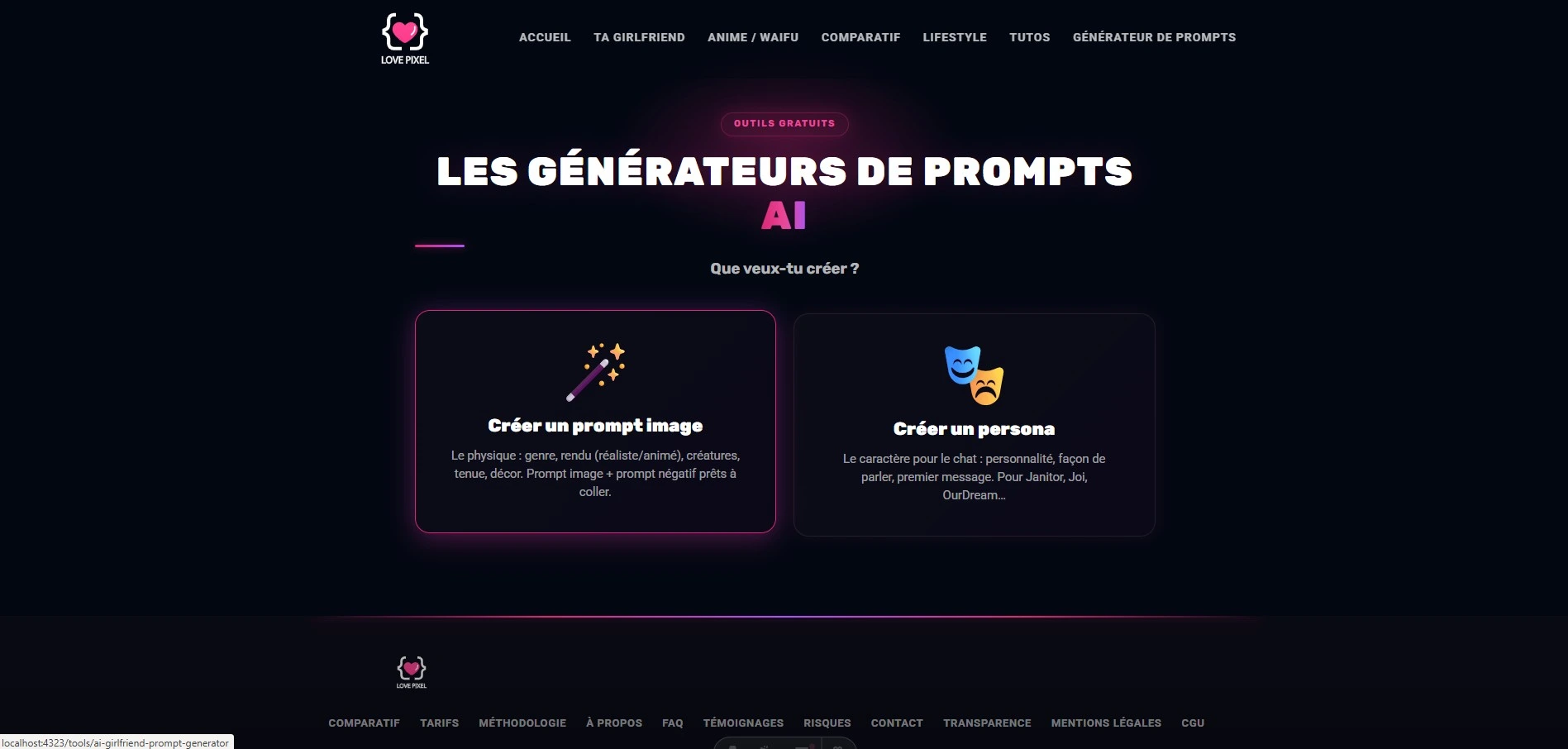
OurDream prompt tip: write in tags separated by commas, not in sentences. Emphasize a key detail with parentheses and a weight —
(red_eyes:1.2)— keeping it between 1.0 and 1.4. And describe what you want: a “no clothes” paradoxically adds clothing.
Step 2 — Create your character on OurDream
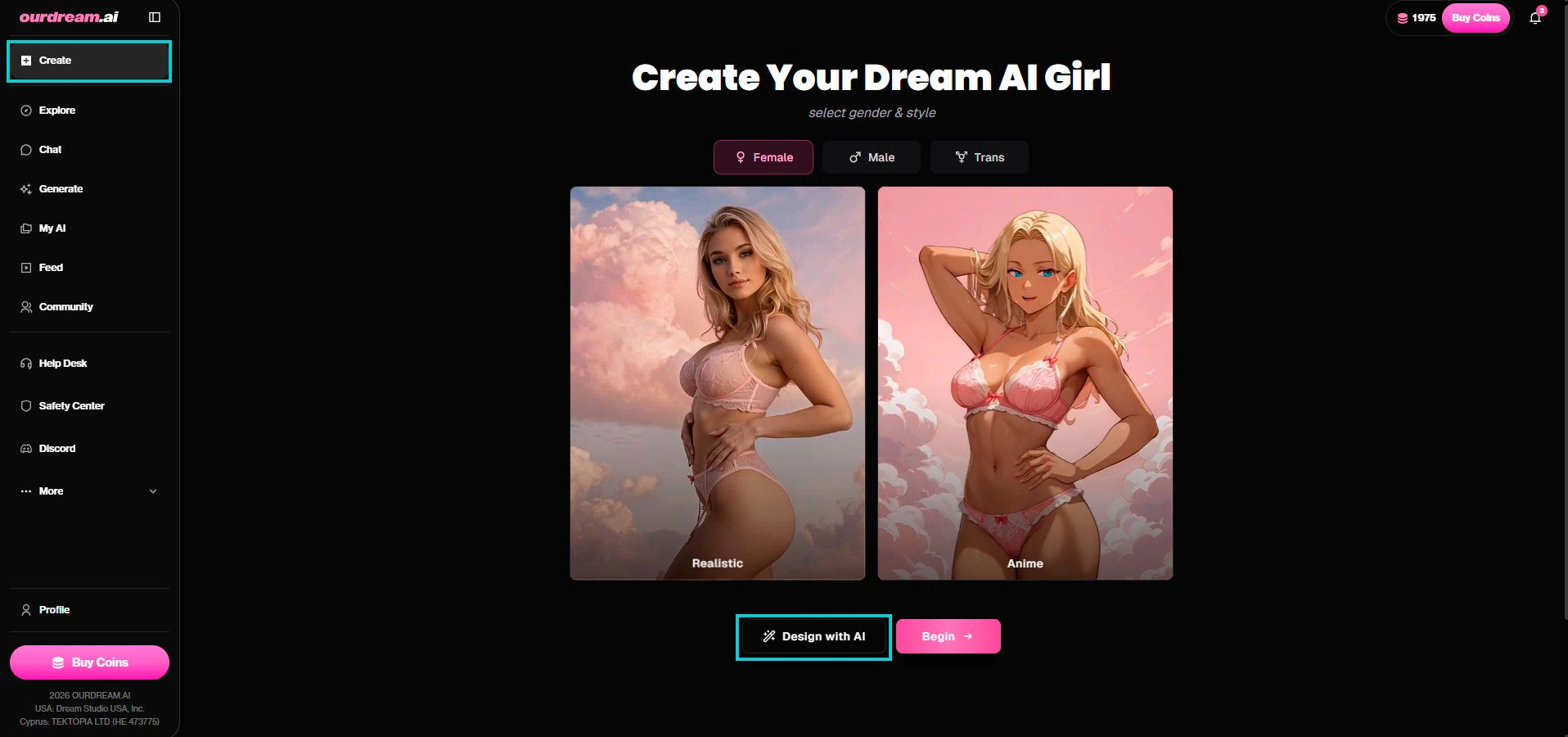
On OurDream, click Create in the left menu, pick the gender (Female / Male / Trans) and the render (Realistic / Anime), then Design with AI.
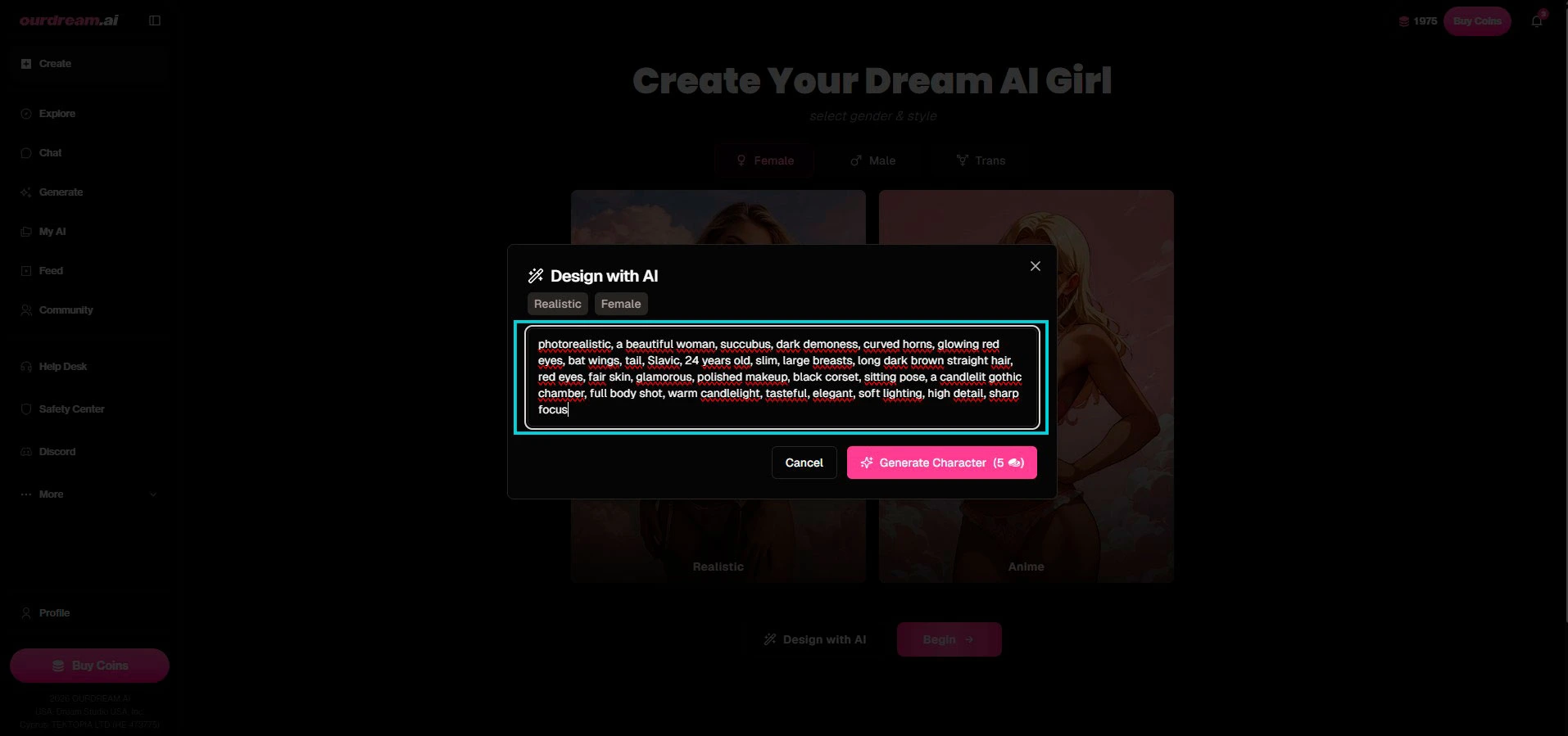
Paste your prompt into the Design with AI window, then click Generate Character (5 coins).
OurDream turns your prompt into a full character: it auto-fills the appearance (body type, ethnicity, eyes, skin, realistic model…) and generates a first image. You can still tweak each field in the Appearance tab if needed.
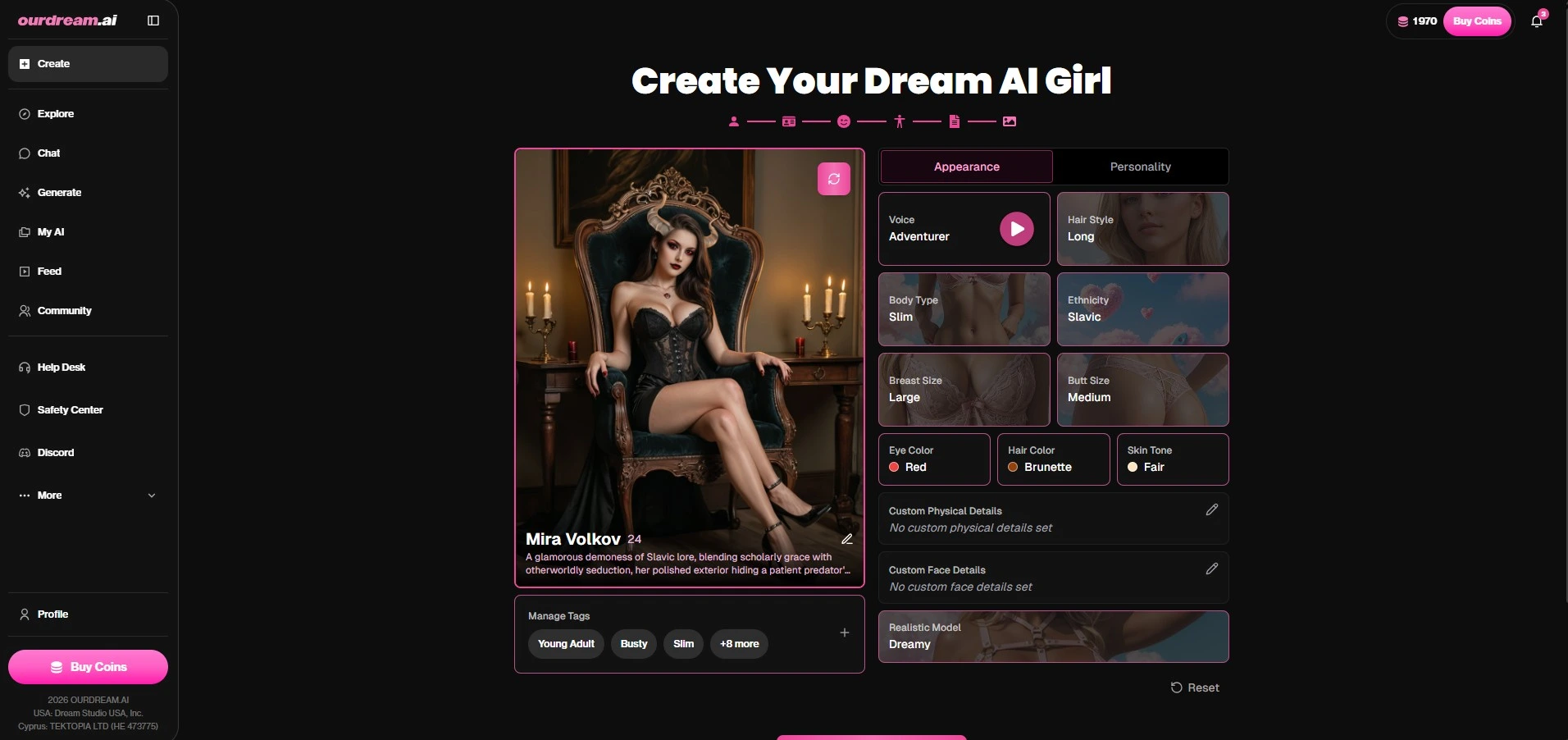
Your character is created — that image is the starting point for the video.
Step 3 — Animate your image into a video
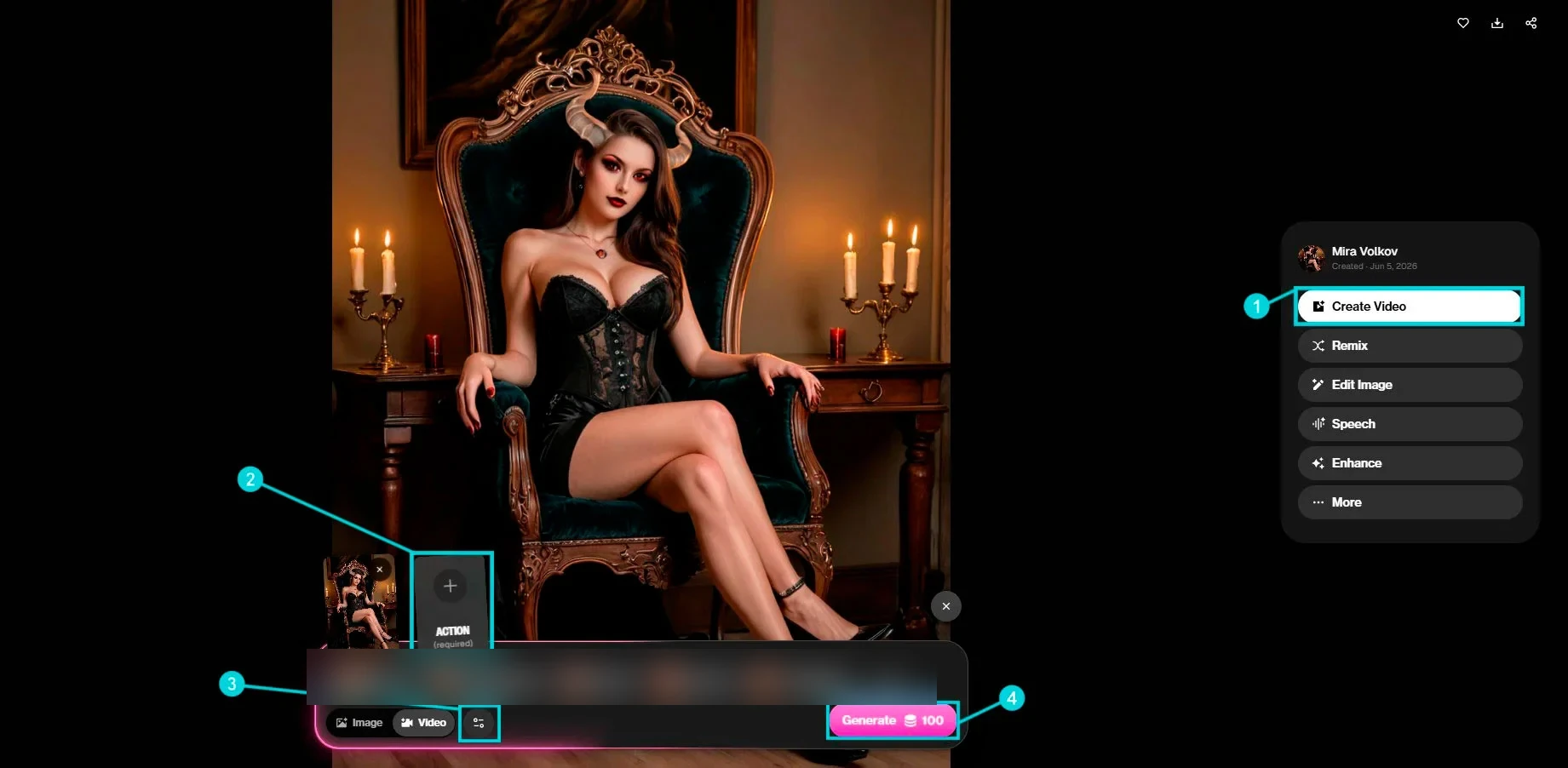
On your character’s image, open the actions menu and pick Create Video. An action is required: you grab it from the library of preset scenes/positions (or go Custom).
Pro tip (important): for this first shot, pick a position as close as possible to your character’s pose in the starting image. The closer the action matches the photo’s pose, the smoother the animation kicks off — you avoid the jarring “jump” between the still image and the video. The idea isn’t to change everything at once: you’ll evolve the position later, shot by shot, at the Extend stage.
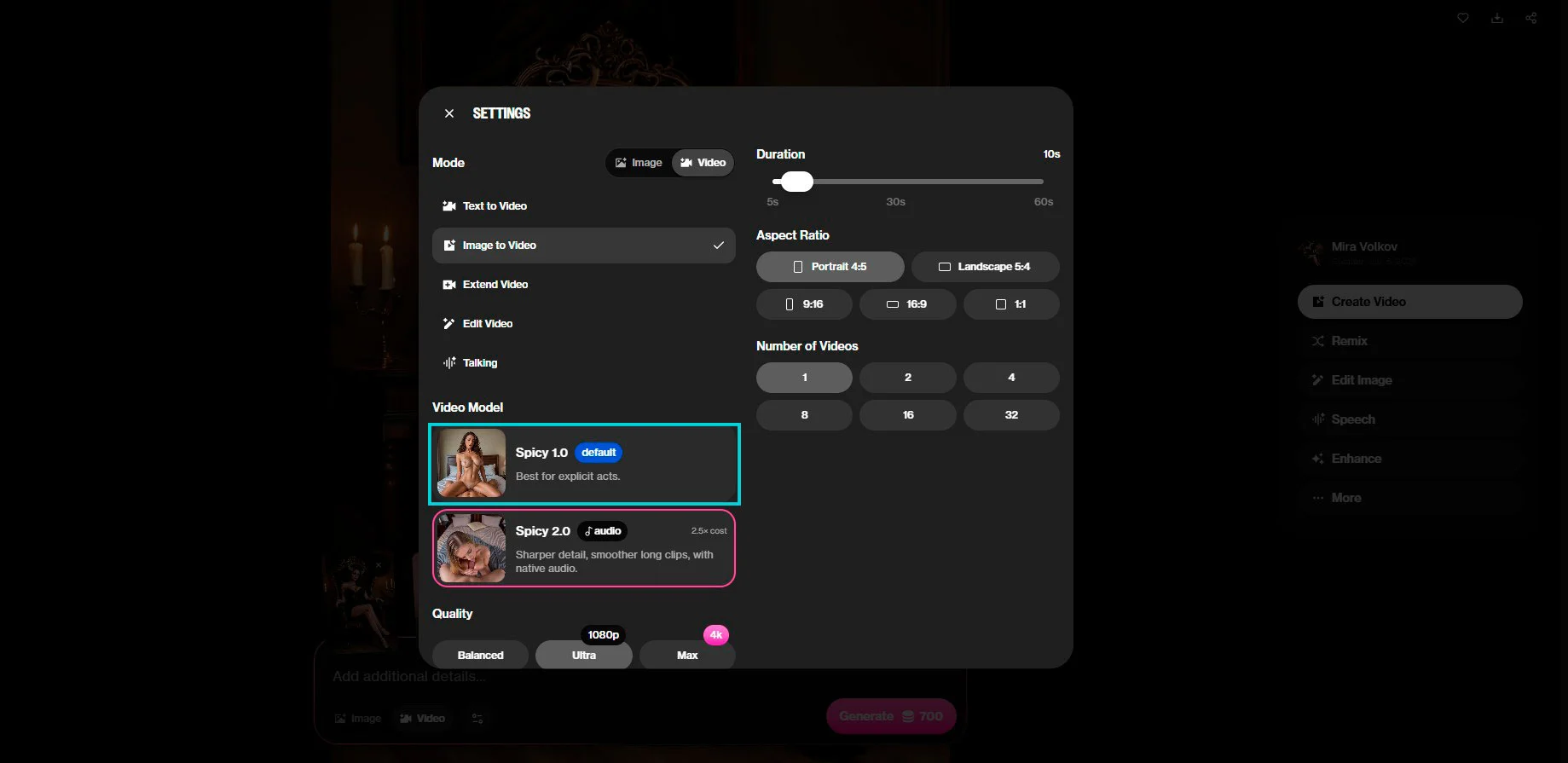
Before you launch, take a look at the Settings: that’s where you set the mode (Image to Video), the duration (up to 60s), the aspect ratio, the number of videos, the model (Spicy 1.0 by default, or Spicy 2.0 with native audio for 2.5× the cost) and the quality (up to 4K).
Click Generate. The cost depends on your settings: 100 coins for a simple video, up to ~700 coins for 10s at Ultra quality. There’s your first animated shot.
Step 4 — Extend it with Extend Video (the long video)
This is where the “long video” magic happens. On your generated video, reopen the menu and pick Extend Video.
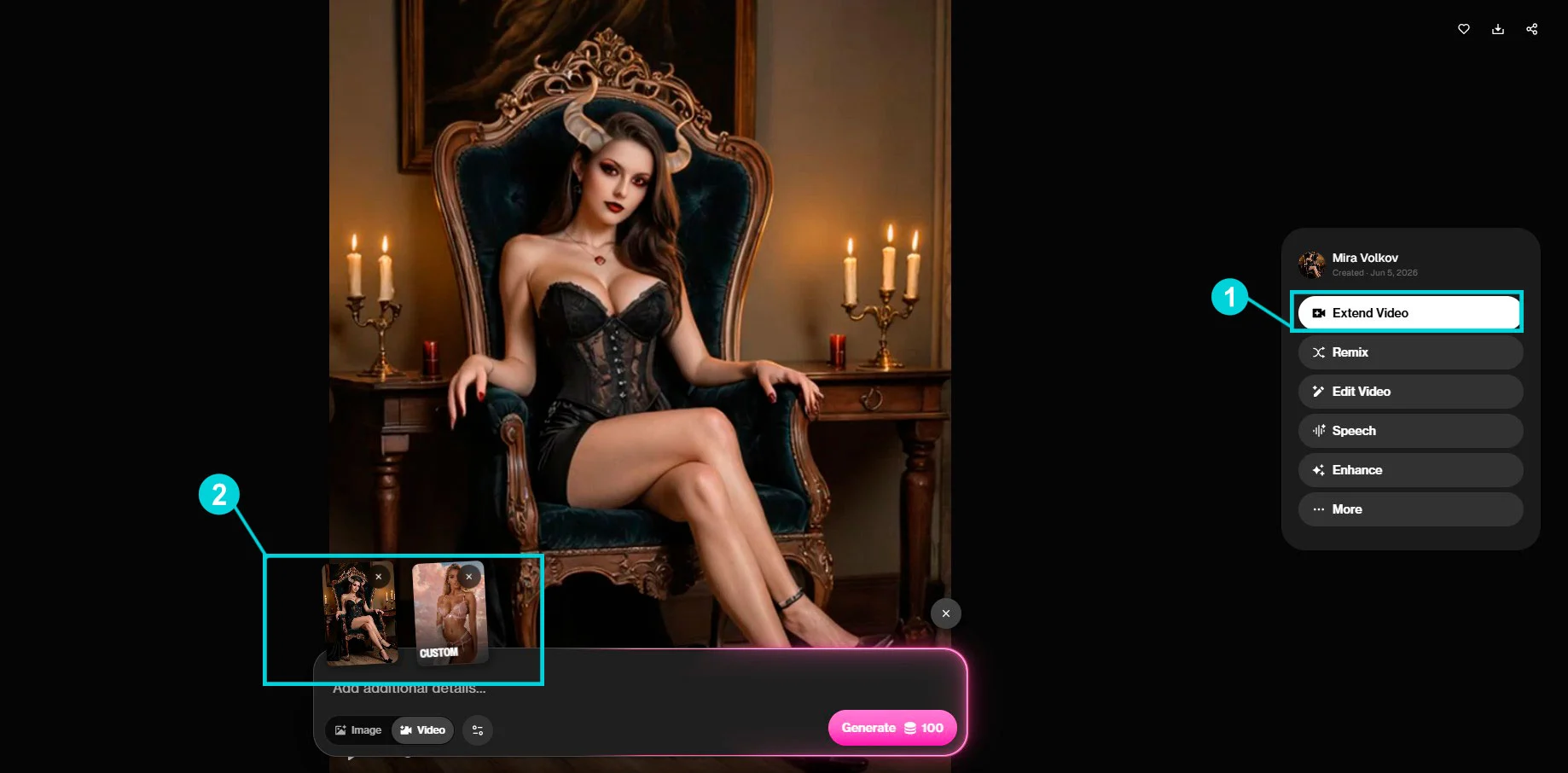
You then add the next scene (a new action/position, or a Custom image): OurDream extends the video by chaining onto that new shot, keeping the same face (facial consistency via the Vivid Engine). Click Generate (from 100 coins).
This is where you evolve the position gradually: start from the previous shot’s pose and pick a position that flows naturally from it, rather than a radical switch. A scene that progresses in small steps (instead of flipping everything at once) makes for a far more believable video.
Repeat as many times as your scene calls for: each Extend adds a shot, and end to end you get your long video.
Step 5 — Grab your video
All your renders (images and videos) stack up in your character’s gallery. You can replay them, download them, or kick off an Extend from any shot.
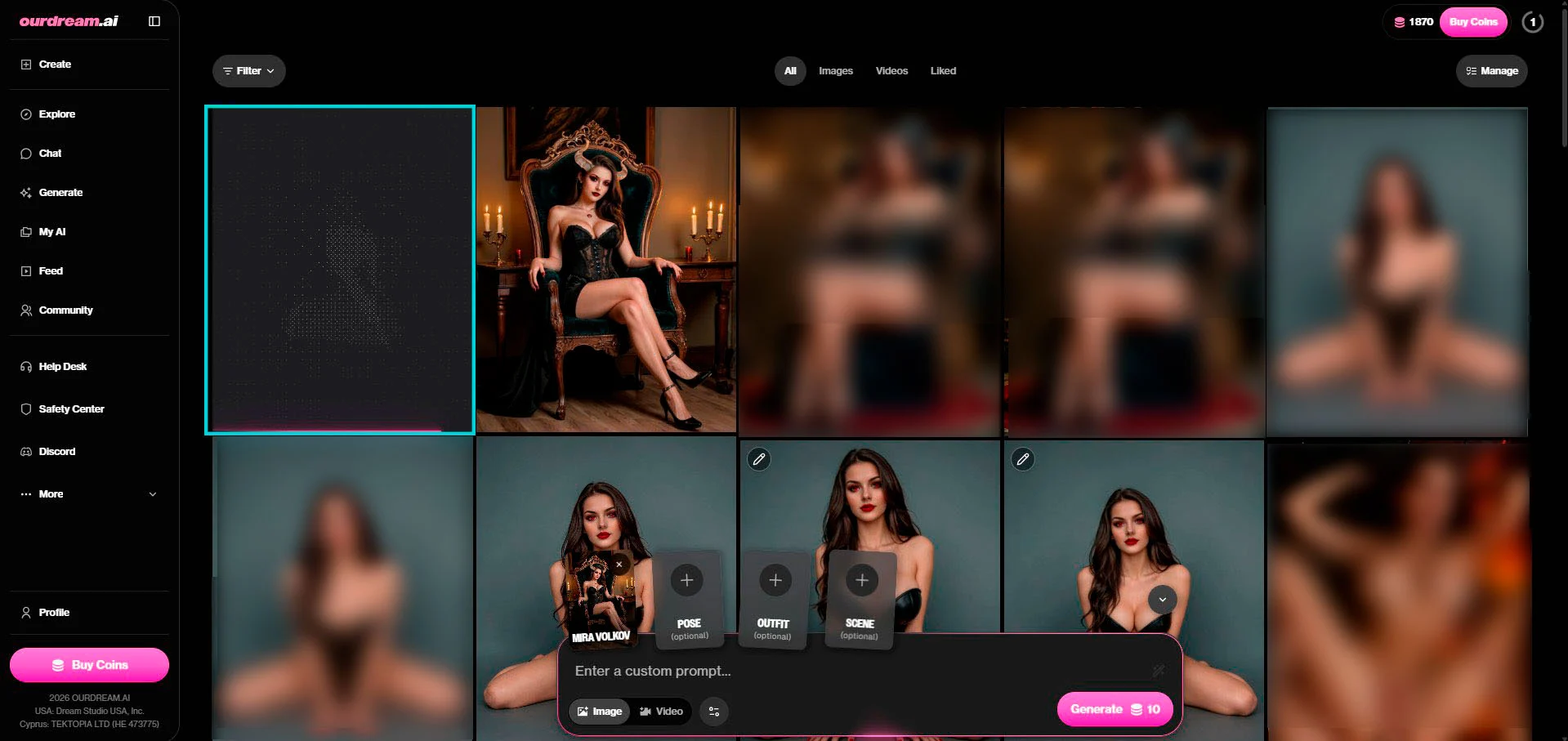
And there you go — exactly the result you saw in the demo at the top of this tutorial.
DreamCoins cost recap
| Action | DreamCoins cost |
|---|---|
| Create the character (Design with AI) | 5 |
| Base video (Image to Video) | from 100 |
| 10s video at Ultra quality | ~700 |
| Extend Video (extend by one shot) | from 100 |
| Spicy 2.0 model (native audio) | ×2.5 the cost |
| Long video (several shots) | the sum of every shot → it climbs fast |
Heads-up: a failed attempt usually isn’t refunded in coins. All the more reason to start from a clean prompt and dial in your Settings before launching.
Common mistakes to avoid
- Phrasing in the negative — “no clothes” paradoxically adds clothing. Describe what you want, not what you don’t.
- Running 10s at 4K on every try — that’s where the bill explodes (up to ~700 coins per shot). Test at low settings, bump the quality once the scene is locked.
- Starting from a shaky image — the animation amplifies the flaws. Better to regenerate a clean image first.
- Trying to upload a real photo — impossible on OurDream (anti-deepfake). Everything goes through a generated character.
Go further
— Our full OurDream AI review — verdict, pricing, DreamCoins, alternatives
— The AI girlfriend prompt generator (free) — the base of every good image
— Best AI Girlfriends 2026 comparison
→ Our full OurDream AI review
→ All our tutorials
→ Best AI Girlfriends 2026 comparison